Blue Iris UI3

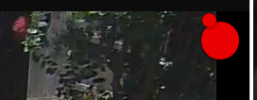
UI3's settings > Event-Triggered Icons section is independent of that. It doesn't matter if camera borders or names are hidden or shown. When UI3 overlays an icon via these settings, it is overlaid on the upper right corner of the camera, not in any kind of title bar.
1782487756671-png.245517
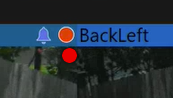
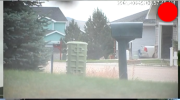
Yep, those overlays have been working for me to indicate recording for years with all camera frames/borders/titlebars turned off. The Extra Visibility toggle puts a red circle around the "walking man" icon (or thunderbolt icon), filling it out as a good recording icon.
 
Yep, those overlays have been working for me to indicate recording for years with all camera frames/borders/titlebars turned off. The Extra Visibility toggle puts a red circle around the "walking man" icon (or thunderbolt icon), filling it out as a good recording icon.
post screenshot
 
  • Haha
Reactions: Techie007L
This is implemented in UI3-329. You can install it manually or wait for it to be included in a later Blue Iris patch.
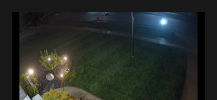
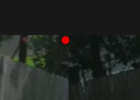
new recording icon overlay in group layout without name works perfectly with new update.
1782495901572.png
but it doubles up in single camera view
1782495966548.png
and when there are names
1782496048841.png
perhaps an override to only be visible when names are off?
 
Last edited:
post screenshot
@bp2008 already did, which I literally quoted in my post. I could provide a dozen more screenshots demonstrating this functionality, ranging from current BI6 versions to early BI5 versions, but this would be a complete waste of time because you are dense. If you actually followed the instructions given originally, you could see it live on your own system instead of needing to live vicariously through others.

new recording icon overlay in group layout without name works perfectly with new update, but it doubles up in single camera view
1782495966548-png.245520
This is because you failed to follow the earlier instructions to turn off the first three toggles under Event-Triggered Icons (functionality that IMHO should be completely removed from UI3). They duplicate the better functionality of the following set of toggles I instructed you to turn on, but only work on solo camera views and not in group views.
 
  • Like
Reactions: bp2008
This is because you failed to follow the earlier instructions to turn off the first three toggles under Event-Triggered Icons (functionality that IMHO should be completely removed from UI3). They duplicate the better functionality of the following set of toggles I instructed you to turn on, but only work on solo camera views and not in group views.
sorry professor! FFI! detention for me. that resolved my screenshot #2. but not #3. #3 also not a huge deal. also, you didnt post any screenshot showing the record icon which is what i called out specifically in the original post.
 
Last edited:
@DarkHelmet So I think these details are revealing a polish issue between Blue Iris and UI3. NVRs don't typically display the camera frames/borders/titlebars, so I always turn them off in Blue Iris to maximize the preview space for each camera (it's probably a relic from when Blue Iris was first written two decades ago and use of frames was common in UI design). It seems the first set of 3 event overlay toggles were introduced to UI3 to substitute for the fact that the camera titlebars (along with the status icons they display) disappear in solo mode. Then for users like me who always disable the camera frames, the later set of toggles were added—which always overlay their status icons (and this is where the new record icon was added). Since all three methods can be independently enabled/disabled, there are combinations that result in unwanted duplicate functionality.

I don't know why someone would dynamically play with turning the titlebars on and off, but... Perhaps a better way to approach this programmatically would be "Does the user want to see the camera status icons?" If camera titlebars are enabled, the first set of toggles make sense (titlebars take care of it for groups, and those overlays for solo views) and the rest of the toggles provide duplicate functionality (since the status icons are already displayed in the camera titlebars). If camera titlebars are disabled, then the second set of toggles make sense (always overlay the status icons, group or solo) while the first set of toggles provide duplicate functionality in solo mode. Instead of having two sets of toggles, perhaps there should be a single set of toggles for the different categories of overlays that can be displayed, and UI3 should internally apply the method that makes sense based on the titlebar/solo combo currently in effect. @bp2008 your thoughts?
 
honestly, the only reason i use them in my index group is because it just so happened that with the amount of cameras i had and the dynamic size of the view on my monitor, the titlebars didnt make each camera any smaller. unique circumstance. but, i prefer the nicer icons, so i just turned the titlebars off everywhere. good to go now with the new per-camera recording icon.
 
I am having some issues with my iPhone.

Everything looks fine in standard view, but if I click a camera feed and rotate the phone to landscape so the feed is full screen, the image will be shifted down the screen, cutting off maybe 1/4" of the FOV. Is there something I need to change/adjust for this to look correct?
 
This is the UI3 thread, so I thought it was obvious.

UI3.
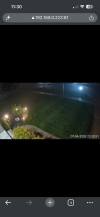
Is it just zoomed in so you could pinch to zoom back out? I have noticed some issues with the default zoom level not appearing to stick when a browser is resized, which is essentially what happens when you rotate a phone. I never figured out the exact cause though.
 
No, it's really weird.

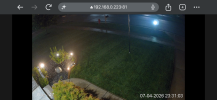
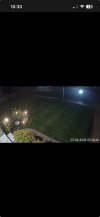
If I navigate to UI3 in Safari or Chrome, it behaves as expected. If I add a link to the home screen, then open the link, this is where it shifts UI3 down. It doesn't matter if I make the link from Safari or Chrome, it behaves the same way in both.

Browser:
IMG_0120.png

IMG_0121.png

Link from Home Screen:
IMG_0112.jpeg

IMG_0113.png
 
No, it's really weird.

If I navigate to UI3 in Safari or Chrome, it behaves as expected. If I add a link to the home screen, then open the link, this is where it shifts UI3 down. It doesn't matter if I make the link from Safari or Chrome, it behaves the same way in both.

That is really weird indeed. Is the entire UI shifted down like that or only the video? Your screenshots seem to be in fullscreen video mode.
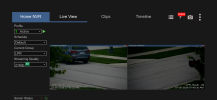
 
It’s the entire thing. It’s just more obvious when you try to view a single feed.

View attachment 245945
Ok yeah, as expected then. Bottom of the UI is missing, like the status section and presumably also the playback controls.

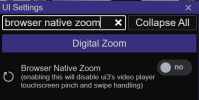
Is it possible to scroll down (via touch and drag) to see the rest of it? You might have to start your touch in the top bar tabs or left side bar in order to scroll down, because the video player itself overrides touch handling. Might also need to enable the "Browser Native Zoom" setting in UI Settings > Digital Zoom section.

1783259458033.png

If the issue is actually this, that means something weird might have been injected into the top of the page which is pushing the rest of the UI down. UI3 was built to very specifically fit your screen without scroll bars, so if something additional begins taking up space it could theoretically cause the bottom of the UI to overflow. I've never seen this actually happen so I don't know for sure how my sizing/layout scripts would handle it.
 
  • Like
Reactions: VorlonFrog
No, I can't scroll to see more. If I am on the view with the PTZ controls and drop downs, that area is scrollable, but nothing else. Toggling native zoom did not make a difference initially, but I am now able to pinch the screen to make the single, landscape feed smaller and then, when I release, it snaps back and looks like it should.

It's just weird that it is fine in the browser, but if I send a shortcut to the home screen and use that, then it slides everything down and I can't see the bottom of the feed.
 
  • Like
Reactions: bp2008
Well in that case I doubt there's anything I can do in UI3 to work around this. Sounds like an iOS bug.
It was happening on my 11 Pro and I had hoped the 17e I just got would fix it, but, alas, it did not. I'll just need to deal with pinching when I want to view landscape, and making sure to enable that in all of my shortcuts.
 
  • Sad
Reactions: bp2008