Blue Iris UI3

I misread your explanation - sorry about that.

To be clear, when you say you can connect from the new ATT ISP to your old home via OVPN, you are able to see other network resources at the old place? If that VPN connection is working, then any resources on either side of that tunnel should be immune to any type of blocking or filtering by your ISP.

When you connect from your cell phone (via cellular data) over VPN to your BI server, it works?

ETA: I re-read your post AGAIN and see you've already answered those questions in the affirmative. But to confirm, your iPhone works fine via VPN from 5G, but not from ATT...

That is peculiar. I don't have Apple devices, so I'm not sure how they operate compared to Android on VPN - but obviously there is something unique about how the phones handle traffic when on the ATT network. As long as the iPhones are able to access other LAN resources (can you ping the BI server on the local IP when connected via ATT and VPN on the iPhone?), I, too am at loss.
 
I misread your explanation - sorry about that.

To be clear, when you say you can connect from the new ATT ISP to your old home via OVPN, you are able to see other network resources at the old place? If that VPN connection is working, then any resources on either side of that tunnel should be immune to any type of blocking or filtering by your ISP.

When you connect from your cell phone (via cellular data) over VPN to your BI server, it works?

ETA: I re-read your post AGAIN and see you've already answered those questions in the affirmative. But to confirm, your iPhone works fine via VPN from 5G, but not from ATT...

That is peculiar. I don't have Apple devices, so I'm not sure how they operate compared to Android on VPN - but obviously there is something unique about how the phones handle traffic when on the ATT network. As long as the iPhones are able to access other LAN resources (can you ping the BI server on the local IP when connected via ATT and VPN on the iPhone?), I, too am at loss.
To be clear, when you say you can connect from the new ATT ISP to your old home via OVPN, you are able to see other network resources at the old place? If that VPN connection is working, then any resources on either side of that tunnel should be immune to any type of blocking or filtering by your ISP.
I can connect via OVPN on a laptop to my old place and RDC to the BI PC and also see UI3. I cannot do either from my cellphone when connected to OVPN and on the ATT ISP. The VPN does connect successfully from the iPhone.

When you connect from your cell phone (via cellular data) over VPN to your BI server, it works?
This is correct
 
What I can't seem to wrap my head around is the fact that your cell phone makes a successful VPN connection through the AT&t ISP, but specifically blue iris and RDP won't work. Again, in theory once a tunnel is established there shouldn't be any filtering of ports or applications. I am unfamiliar with apple. Hopefully somebody else that has more experience will be able to chime in.
 
Last edited:
A few things:
  1. In UI3, right click the group video, choose Group Settings. There, you can disable Fit to Viewport and lock in a specific aspect ratio. Tune to your taste.
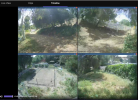
Hmm. Did something change in this recently? I scaled everything the way I want and turned off Fit to Viewport, and it looks correct in Timeline if I'm current/live:

1779731602291.png

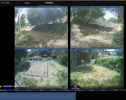
but if I go back in time even one tick, I get these small black areas between the cameras:

1779731678772.png

if I go forwards to Live, then the black area disappears
 
Why doesn't UI3 play the audio of the clip? The clips are in MP4 format. BI Main app does play the audio
Blue Iris currently does not support remote streaming audio from an MP4. In the latest version of UI3 you can have UI3 open MP4 files natively which bypasses Blue Iris's streaming pipeline, if you really need the audio. But then the video player is separate from UI3, so it is not very well integrated.
 
Hmm. Did something change in this recently? I scaled everything the way I want and turned off Fit to Viewport, and it looks correct in Timeline if I'm current/live:

...

but if I go back in time even one tick, I get these small black areas between the cameras:

...

if I go forwards to Live, then the black area disappears

As far as I can tell, Blue Iris just doesn't honor the aspect ratio that UI3 requests anymore for timeline group video. I don't remember when this broke. It seems fine in 5.9.9.98, 6.0.1.8 and 6.0.4.4 but broken in more recent versions. If you want to contact Blue Iris Support they should be able to fix it.
 
Blue Iris currently does not support remote streaming audio from an MP4. In the latest version of UI3 you can have UI3 open MP4 files natively which bypasses Blue Iris's streaming pipeline, if you really need the audio. But then the video player is separate from UI3, so it is not very well integrated.
I have one camera that records in MP4 format and I would like to capture the audio, even without the video. How would that be done? So the other 13 cameras record in BVR format.
 
I have one camera that records in MP4 format and I would like to capture the audio, even without the video. How would that be done? So the other 13 cameras record in BVR format.

What exactly are you asking?

Blue Iris is not designed to record audio separately.

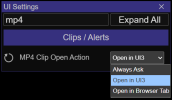
This setting in UI3-325 (released 13 days ago) is what I was referring to, which lets you open MP4 clips in a new web browser tab in order to bypass the limitations of Blue Iris's MP4 streaming. The setting is configured by default to "Always Ask" so you don't need to hunt for it in the UI Settings panel unless you've already changed it.

1780942919169.png
 
  • Like
Reactions: Flintstone61
What exactly are you asking?

Blue Iris is not designed to record audio separately.

This setting in UI3-325 (released 13 days ago) is what I was referring to, which lets you open MP4 clips in a new web browser tab in order to bypass the limitations of Blue Iris's MP4 streaming. The setting is configured by default to "Always Ask" so you don't need to hunt for it in the UI Settings panel unless you've already changed it.

View attachment 244698
Ok, thank you. So I'll download the latest version of UI3. The picture told me clearly, this is ok for me.Thanks for the replies
 
@bp2008 Is there an option I missed (or can there be an option added) to still show icons when camera borders and names are turned off? Mostly I just care about the recording icon, but if all can still overlay, even better. There are overlay icons in single-camera view with no border, so hope this is possible.
 
Last edited:
@DarkHelmet In the UI3 Settings dialog, scroll down to the Event-Triggered Icons section. There, I always turn all of them on, except for the first three (they tend to double the others in some scenarios and don't appear except when solo) and the second to last (New alerts) one. IMHO, this (along with borderless camera panes) should've been the default, but you can create a ui3-local-overrides.js file to automatically apply such UI3 settings to all new sessions.
 
@DarkHelmet In the UI3 Settings dialog, scroll down to the Event-Triggered Icons section. There, I always turn all of them on, except for the first three (they tend to double the others in some scenarios) and the second to last (New alerts) one. IMHO, this should've been the default, but you can create a ui3-local-overrides.js file to automatically apply such settings to all new sessions.
Thanks, but those icons do not show in a group with borders off which is what I'm looking for.
 
  • Haha
Reactions: Techie007L
Thanks, but those icons do not show in a group with borders off which is what I'm looking for.
They sure do, which is why I use them, because I always run the cameras frameless (no borders or titlebars). Only the first three toggles are limited to solo streams, which is why I said to turn them off and turn the others on, which are overlayed over the camera images in group views.

Perhaps if you follow the instructions given instead of being so quick to retort back, it will actually work—as it has for me with countless systems.
 
Last edited:
ive long since had all icons turned on. every single one. there are no icons for me with borders and names off. you assume i havent tried clicking an icon button.
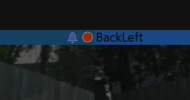
View attachment 245514
View attachment 245515

The icons in that first screenshot are added by Blue Iris, baked directly into the video stream only when camera names are shown in group settings. Because without the camera name, you have no title bar, and Blue Iris is not coded to overlay those icons without the title bar.

UI3's settings > Event-Triggered Icons section is independent of that. It doesn't matter if camera borders or names are hidden or shown. When UI3 overlays an icon via these settings, it is overlaid on the upper right corner of the camera, not in any kind of title bar.

1782487756671.png

Unfortunately the code for these icons was written many years ago when there was less information available from Blue Iris's camlist API, and it is not able to show a recording icon over cameras that are recording. I could make it happen but I'd have to do some work.
 
Unfortunately the code for these icons was written many years ago when there was less information available from Blue Iris's camlist API, and it is not able to show a recording icon over cameras that are recording. I could make it happen but I'd have to do some work.
I have claude working on it now. We'll see how it goes.
 
  • Like
Reactions: looney2ns