Version 6

Think I’ve worked out what the issue is/was. I as a test enabled Intel hardware acceleration and for some reason that causes more CPU usage on my system. I had noticed this way before, a long time ago so this had previously been disabled but I enabled it in the main settings and as all my cams are set to Default after a restart of the BI service they all started to use it.

My test system is now back to around 20-25%.
 
My CPU usage increased quite a lot and found many of the settings for my 35 individual cameras were compromised when imported by version 6. After reviewing many of the video settings and correcting them, my usage has dropped back to the 25% range where it was before upgrading. Some cameras lost their sub stream settings and required Find/Inspect to pick them back up. Though video FPS is set in each camera, I found that limiting it in BI's camera video Max Rate setting made a significant difference.
 
When you are quoting BI's CPU usage, are you looking at the actual usage in , say, Task manager, or at the CPU percentage reported by BI at the bottom of the timeline? That number, for me , is higher than the number windows reports, I think because it includes all windows usage. So BI says about 25-30%, Task manager says BI using about 17% for BI only. Just trying to fit my experience to the rest... (and I know you can set BI to use a 'Fudge" to make the two the same)
 
When you are quoting BI's CPU usage, are you looking at the actual usage in , say, Task manager, or at the CPU percentage reported by BI at the bottom of the timeline?
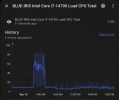
I use LibreHardwareMonitor (GitHub - LibreHardwareMonitor/LibreHardwareMonitor: Libre Hardware Monitor is free software that can monitor the temperature sensors, fan speeds, voltages, load and clock speeds of your computer.) which measures total CPU use of my BI machine. The data is captured and stored on another machine running Home Assistant. I'm running 15 cameras (all using CPAI) but, to be fair, I'm also running Plex on my BI server.

Here's a graph of the last 24 hrs.

Screen Shot 2025-12-10 at 9.14.39 PM.png
 
It also uses less memory when you have those set correctly. Not sure why it defaults to 30fps.
Wow, after all these years of using BI I never knew that, all my cams are 15FPS - but I had a mix of BI defaults between 20FPS and 30FPS - Should change them all to 15FPS to match my cams or is there a need to go a little higher of say 16FPS?
 
When you are quoting BI's CPU usage, are you looking at the actual usage in , say, Task manager, or at the CPU percentage reported by BI at the bottom of the timeline? That number, for me , is higher than the number windows reports, I think because it includes all windows usage. So BI says about 25-30%, Task manager says BI using about 17% for BI only. Just trying to fit my experience to the rest... (and I know you can set BI to use a 'Fudge" to make the two the same)
I’m just using the BI mobile app to see the claimed usage
 
Wow, after all these years of using BI I never knew that, all my cams are 15FPS - but I had a mix of BI defaults between 20FPS and 30FPS - Should change them all to 15FPS to match my cams or is there a need to go a little higher of say 16FPS?
I always set it for what I have my camera set to. In the past BI would bump these up a little sometimes. Here lately mine are holding to 10fps or 15psc depending on a mix of cams. Just keep an eye on them.
 
Wow, after all these years of using BI I never knew that, all my cams are 15FPS - but I had a mix of BI defaults between 20FPS and 30FPS - Should change them all to 15FPS to match my cams or is there a need to go a little higher of say 16FPS?
That's not a setting that you can change; from BI's Built-in "Help": :cool:

The max FPS box is not a setting for network IP cameras. It merely reflects the maximum rate which has been observed from the camera and may be used internally to size a receive buffer. You must control the FPS and kbps that your camera is sending by adjusting this in the camera’s own web browser based settings.
 
That's not a setting that you can change; from BI's Built-in "Help": :cool:

The max FPS box is not a setting for network IP cameras. It merely reflects the maximum rate which has been observed from the camera and may be used internally to size a receive buffer. You must control the FPS and kbps that your camera is sending by adjusting this in the camera’s own web browser based settings.
But, if that is much higher than the cams fps, it will affect memory usage in negative way.
 
  • Like
Reactions: anijet and Tinman
That's not a setting that you can change; from BI's Built-in "Help": :cool:

The max FPS box is not a setting for network IP cameras. It merely reflects the maximum rate which has been observed from the camera and may be used internally to size a receive buffer. You must control the FPS and kbps that your camera is sending by adjusting this in the camera’s own web browser based settings.
Well correct, kind of. Say you add a new camera and most of the time they default at 30fps. So Bi will change its setting to 30fps and use some of your memory in the process. Even when you change the cameras FPS within the camera, BI will not lower it, thus you need to set it so it don't allocate that need.
 
  • Like
Reactions: Broachoski
That's not a setting that you can change; from BI's Built-in "Help": :cool:

The max FPS box is not a setting for network IP cameras. It merely reflects the maximum rate which has been observed from the camera and may be used internally to size a receive buffer. You must control the FPS and kbps that your camera is sending by adjusting this in the camera’s own web browser based settings.

Oh you can definitely still assign a value in that box.

Since years ago Blue Iris will automatically adjust the value up if it detects a frame rate that is higher than currently set. Which happens occasionally if something stutters. However it will not adjust the value back down.

It does affect memory usage somewhat, and in the past I've also caught this value having adverse effects on the H.264 encoder used for web server streaming. Like it wouldn't hit your target bit rate properly or something. That was a long time ago and I'm not sure there is still any effect on the encoder.
 
  • Like
Reactions: Mr-Gizmo
Well correct, kind of. Say you add a new camera and most of the time they default at 30fps. So Bi will change its setting to 30fps and use some of your memory in the process. Even when you change the cameras FPS within the camera, BI will not lower it, thus you need to set it so it don't allocate that need.

Oh you can definitely still assign a value in that box.

Since years ago Blue Iris will automatically adjust the value up if it detects a frame rate that is higher than currently set. Which happens occasionally if something stutters. However it will not adjust the value back down.

It does affect memory usage somewhat, and in the past I've also caught this value having adverse effects on the H.264 encoder used for web server streaming. Like it wouldn't hit your target bit rate properly or something. That was a long time ago and I'm not sure there is still any effect on the encoder.
So which of you will notify the author of BI's "Help" that they are "kind of" incorrect here? :idk:
 
  • Like
Reactions: looney2ns
So which of you will notify the author of BI's "Help" that they are "kind of" incorrect here? :idk:
Not me hehe. I bug Ken about too much stuff already I think.
 
Couple fo questions:

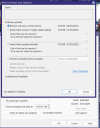
1. Now BI 6 is in the update screen in version 5. . . .
I'm not seeing this:

1765565252603.png

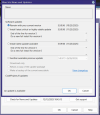
Do I need to be up to 5.9.9.9999999 before I can do a direct update to 6?

And we're up to 6.0.0.1 already! Is it soup yet? Or should I wait a few more bug fixes?

edit: updated screen capture to show active support contract.
 

Attachments

  • 1765565137626.png
    1765565137626.png
    233.6 KB · Views: 5