B.I. don't find camera stream

Woody70

Getting the hang of it
Jun 9, 2020
218
43
Hemet California
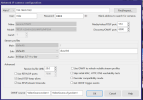
I have this Cinnado Model D1 camera. It is a very cheap camera so I don't need to be told that. I got it brand new for free and it is not something I really need.I have looked it up and it says it does work with B.I. But the thing is I am at a complete loss why Blue Iris will not find the video stream. It finds the camera immediately when putting in the IP and find and inspect.
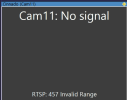
Then it comes up with this error: 457 invalid range, and the camera is right next to the router.I have tried many different rtsp streams to no avail, they do come up with different errors though. I have two routers on two different subnets running to two different NICs and have tried it with both and get the same results.Any thoughts on what could be wrong. I will post some of the screenshots.Thanks for any help.
 

Attachments

  • 2. General.png
    2. General.png
    578.8 KB · Views: 10
  • 1.Cinnado BI finds.png
    1.Cinnado BI finds.png
    25.3 KB · Views: 10
  • 3.BI Error-457 Invalid Range.png
    3.BI Error-457 Invalid Range.png
    14.1 KB · Views: 10
Assuming you know the camera username, password and IP address, try the following URL with VLC running on a PC that is on the same subnet as the camera and get back to us. You may also have to use a network scanner such as Fing or Angry IP to see if port 554 is, in fact, the RTSP port for that camera.

  • rtsp:/Camera-IP:554/ch0
  • or
  • rtsp:/Camera-IP:554/ch1
NOTE: be sure to place 2 "/" after "rtsp:" as the forum won't allow 2 to be displayed consecutively
 
  • Like
Reactions: VorlonFrog
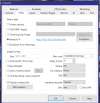
Also, how about a screenshot of the "Camera settings" => "Video" => "Configure" tab
 
Thank you for your reply. The camera app shows the RTSP and the Onvif ports for the camera and they are, RTSP:554 and onvif you can make from 8000 to 8999 and they are both set correctly in B.I. Also the camera has the option to use onvif password or not, and I have tried it with both and get the same results. I did try those RTSPs placing 2 "/" in VLC like many other ones they did not work, I assume that is what you meant, was to put them in the VLC program media stream and see if it came up. I have tried so many RTSPs and nothing seems to work. What is dumbfounding to me is, All the cameras that I have installed in B.I. that find and inspect finds, all have worked right then, except this one, and B.I. found this one faster than any it has before. I will get back with the screenshots you ask for. Also I have tried it with passwords from the app also with admin, admin and blank and nothing I try works.
 

Attachments

  • Video.png
    Video.png
    69.4 KB · Views: 12
  • Config..png
    Config..png
    145.3 KB · Views: 12
Last edited:
  • Like
Reactions: TonyR
Did you perform a hard reset of the camera when you got it (if it has that option) ?
 
Thank you for your reply. The camera app shows the RTSP and the Onvif ports for the camera and they are, RTSP:554 and onvif you can make from 8000 to 8999 and they are both set correctly in B.I. Also the camera has the option to use onvif password or not, and I have tried it with both and get the same results. I did try those RTSPs placing 2 "/" in VLC like many other ones they did not work, I assume that is what you meant, was to put them in the VLC program media stream and see if it came up. I have tried so many RTSPs and nothing seems to work. What is dumbfounding to me is, All the cameras that I have installed in B.I. that find and inspect finds, all have worked right then, except this one, and B.I. found this one faster than any it has before. I will get back with the screenshots you ask for. Also I have tried it with passwords from the app also with admin, admin and blank and nothing I try works.
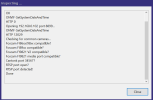
Perhaps you could post the results of the find/inspect window, it might give some insight as to a possible solution?
Does the camera have a web interface or do you have to use some sort of app to change settings on the camera?
 
Perhaps you could post the results of the find/inspect window, it might give some insight as to a possible solution?
Does the camera have a web interface or do you have to use some sort of app to change settings on the camera?
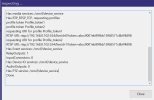
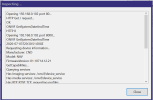
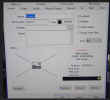
Here is the find and inspect window and the result from putting those URLs in the stream boxes.
 

Attachments

  • Find and Inspect.png
    Find and Inspect.png
    30.6 KB · Views: 12
  • Result.png
    Result.png
    12.9 KB · Views: 11
Thank you for your reply. The camera app shows the RTSP and the Onvif ports for the camera and they are, RTSP:554 and onvif you can make from 8000 to 8999 and they are both set correctly in B.I. Also the camera has the option to use onvif password or not, and I have tried it with both and get the same results. I did try those RTSPs placing 2 "/" in VLC like many other ones they did not work, I assume that is what you meant, was to put them in the VLC program media stream and see if it came up. I have tried so many RTSPs and nothing seems to work. What is dumbfounding to me is, All the cameras that I have installed in B.I. that find and inspect finds, all have worked right then, except this one, and B.I. found this one faster than any it has before. I will get back with the screenshots you ask for. Also I have tried it with passwords from the app also with admin, admin and blank and nothing I try works.
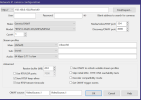
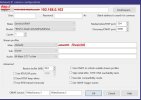
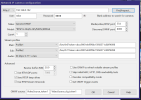
I don't know that this is the problem, but it would definitely be a problem: In your Network IP camera configuration window in Blue Iris (2nd screenshot in the attached image on the quoted post), erase everything except for the IP address in the first text box (after the "http://" dropdown). It should simply read "192.168.0.102". Take out the extra "/" at the beginning of the Main textbox (that's an invalid URL). If it still doesn't work, try turning off Use RTSP/stream timecode. If it still doesn't work, try copying the rest of the URL shown in the Inspector (i.e. the token) and see if that makes it work.
 
  • Like
Reactions: Broachoski
So I guess you were not able to try the URL in VLC as suggested in my post #2. :cool:
Thanks for the requested screenshot. Id there no username or password?

Try this, enter ALL the info that's in red and click on "OK".

config_1.jpg
 
Last edited:
I don't know that this is the problem, but it would definitely be a problem: In your Network IP camera configuration window in Blue Iris (2nd screenshot in the attached image on the quoted post), erase everything except for the IP address in the first text box (after the "http://" dropdown). It should simply read "192.168.0.102". Take out the extra "/" at the beginning of the Main textbox (that's an invalid URL). If it still doesn't work, try turning off Use RTSP/stream timecode. If it still doesn't work, try copying the rest of the URL shown in the Inspector (i.e. the token) and see if that makes it work.
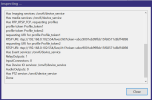
I tried all of them and same result. I did however put in a password and got these results that are different but still the same result. The inspecting is much larger or longer than before is why I had to use two screenshots. And it also auto filled the streams.
 

Attachments

  • 2.Inspecting-2.png
    2.Inspecting-2.png
    32.2 KB · Views: 5
  • 4.Error With password enabled.png
    4.Error With password enabled.png
    16.1 KB · Views: 5
  • 3.With password enabled.png
    3.With password enabled.png
    67.2 KB · Views: 5
  • 1.Inspecting-1.png
    1.Inspecting-1.png
    29.5 KB · Views: 5
So I guess you were not able to try the URL in VLC as suggested in my post #2. :cool:
Thanks for the requested screenshot. Id there no username or password?

Try this, enter ALL the info that's in red and click on "OK".

View attachment 245838
Tried that and same result. Also I did try the URL in VLC and many other type of streams with that URL and VLC did not open any of them.
 

Attachments

  • 4.Error With password enabled.png
    4.Error With password enabled.png
    16.1 KB · Views: 1
Tried that and same result. Also I did try the URL in VLC and many other type of streams with that URL and VLC did not open any of them.
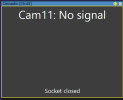
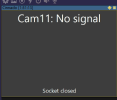
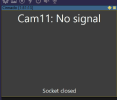
Ok I don't know why but this worked for now. I tried this exact thing yesterday and it did not work then. The only thing different is I enabled the password in the camera and in B.I. but that should not make any difference. Woops maybe I spoke too soon because now it stopped working, and now it is working. It keeps getting video then dropping the video and the camera is about 10 inches from the router. Every time it drops out it says socket closed.
 

Attachments

  • This worked.png
    This worked.png
    61.1 KB · Views: 4
  • 4.Error With password enabled.png
    4.Error With password enabled.png
    16.1 KB · Views: 3
Ok I don't know why but this worked for now. I tried this exact thing yesterday and it did not work then. The only thing different is I enabled the password in the camera and in B.I. but that should not make any difference. Woops maybe I spoke too soon because now it stopped working, and now it is working. It keeps getting video then dropping the video and the camera is about 10 inches from the router. Every time it drops out it says socket closed.
Now it quit working at all. I think the camera is just no good maybe, although it does get a great picture on the app.
 
  • Wow
Reactions: TonyR
Increase "Receive Buffer" to 20MB and UNcheck "Send RTSP keep-alives".

I think that "socket closed" error is mainly due to Wi-Fi connection issues, even if it is 10" from the router.
 
Last edited:
Now it quit working at all. I think the camera is just no good maybe, although it does get a great picture on the app.
Did you scan a QR code or enter a serial number with the app? If so the camera is also set to P2P (cloud) operation and trying to run that in conjunction with your LAN is likely a problem.

If the camera has no embedded webGUI where you can log in and disable P2P then delete the camera from the app IF you want to use the camera with Blue Iris which is on your LAN.
 
Did you scan a QR code or enter a serial number with the app? If so the camera is also set to P2P (cloud) operation and trying to run that in conjunction with your LAN is likely a problem.

If the camera has no embedded webGUI where you can log in and disable P2P then delete the camera from the app IF you want to use the camera with Blue Iris which is on your LAN.
If I delete it from the app won't it lose it's connection to the router? The app is Wainsview Cloud but I did not connect it to the cloud service.
 
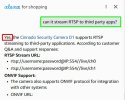
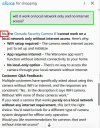
Lots of conflicting info regarding this camera on Ama2on. I understand the reason for tackling it initially, I would have done the same. Such challenges can be a learning experience....you don't know until you try. I personally wouldn't waste any more time on it. :cool:


cinnado_1.jpg cinnado_2.jpg cinnado_3.jpg
 
As an Amazon Associate IPCamTalk earns from qualifying purchases.
  • Like
Reactions: looney2ns
Lots of conflicting info regarding this camera on Ama2on. I understand the reason for tackling it initially, I would have done the same. Such challenges can be a learning experience....you don't know until you try. I personally wouldn't waste any more time on it. :cool:


View attachment 245877 View attachment 245878 View attachment 245879
Thank you for the reply. I actually have read all this when I bought the camera on Amazon. I gave up trying to figure it out and filed for a return. They gave me a gift card for the price I paid for it and told me I don't have to return it, so I actually got it for free and figured what the heck I'll keep messing with it and see what happens and that is when I posted the question to you guys, I figured what the heck might as well see if anyone could figure it out. Now I will take your advice and just call it what is seems to be is junk and forget about it. I will say this about cheap cameras, I bought this TAPO C100 indoor camera some time ago for under 20 bucks and it has a great picture and works great, that's why I took a chance on this camera but lesson learned here. Thank you to everyone that did try though.

 
As an Amazon Associate IPCamTalk earns from qualifying purchases.
  • Like
Reactions: TonyR