Can't use sub streams?

cmx

Getting the hang of it
Nov 9, 2024
125
52
NJ
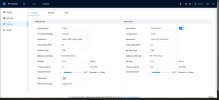
I have 6 identical cameras out of the 6 only one of them will let me use the sub stream! All 6 have sub stream turned on all use the same ports, settings, firmware, codec.

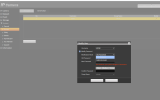
But BI using the latest version will not find the substreams on the other 5, i even tired to clone the working cameras settings and then i would just not get video.

The correct video path is

/cam/realmonitor?channel=1&subtype=0&unicast=true&proto=Onvif


if i use that on one of the other 5 i get no video.
 

Attachments

  • 1.jpg
    1.jpg
    80.9 KB · Views: 6
  • 2.jpg
    2.jpg
    70.3 KB · Views: 6
I have 6 identical cameras out of the 6 only one of them will let me use the sub stream! All 6 have sub stream turned on all use the same ports, settings, firmware, codec.

But BI using the latest version will not find the substreams on the other 5, i even tired to clone the working cameras settings and then i would just not get video.

The correct video path is

/cam/realmonitor?channel=1&subtype=0&unicast=true&proto=Onvif


if i use that on one of the other 5 i get no video.
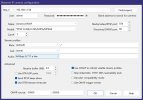
FWIW, the URL you posted is for main stream (subtype=0).

When you say ".... All 6 have sub stream turned on...." does that mean you've logged into each camera's webGUI and enabled/configured the sub stream?

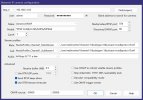
EDIT: Are you using "Find/Inspect" to populate the BI video configuration boxes?
 
Last edited:
FWIW, the URL you posted is for main stream (subtype=0).

When you say ".... All 6 have sub stream turned on...." does that mean you've logged into each camera's webGUI and enabled/configured the sub stream?

EDIT: Are you using "Find/Inspect" to populate the BI video configuration boxes?

Yes find and inspect leaves it blank, Yes all had the sub stream on by default but i did log in and check.

even if i put /cam/realmonitor?channel=1&subtype=0&unicast=true&proto=Onvif

The other 5 will not show any video unless it's left blank.
 
  • Wow
Reactions: TonyR
All 5 are the same.

Device Model
IPC-Color4K-T180

Audio Input
1
Audio Output
1
Alarm-in Port
1
Alarm-out Port
1
ONVIF Version
24.12(V3.1.0.2313712)
System Version
V3.140.0000000.81.R, Build Date: 2026-05-08
Web Version
V5.01.0.2447661
Algorithm Version
V6.02.09.0
Security Baseline Version
V2.4
H5Player Version
V3.01.1

Copyright 2026, all rights reserved.
 

Attachments

  • t.jpg
    t.jpg
    93.8 KB · Views: 3
Goto whatever page/link the camera provides for Users / Accounts.
Select the tab that says Onvif.
Be certain whatever user you're putting in Blue Iris username has a matching Onvif user defined.
 
This has little to do with your issue but thought I'd mention these recommended initial camera settings for use with BI:
  • Encoding strategy: General (or Smart Codec: Off)
  • Encode mode: H264
  • Bitrate type: CBR
  • Bit rate: 8192
  • Frame rate: 15 FPS
  • Frame interval (iFrame): 15
 
A while back I had something (forgot what) that wasn't working on one camera, even though all its settings were identical to another same model camera that worked right. I eventually solved it by deleting the non-working camera and reinstalled it, copying the one that worked right.
 
  • Like
Reactions: TonyR
A while back I had something (forgot what) that wasn't working on one camera, even though all its settings were identical to another same model camera that worked right. I eventually solved it by deleting the non-working camera and reinstalled it, copying the one that worked right.
Yes, I forgot about that....had a similar occurence years ago...
Kind of like how we sometimes forget about power cycling a glitchy device...it's too non-technical and uncomplicated to work, our subconscious thinks. :cool:
 
  • Like
Reactions: VorlonFrog
Just gonna say "me too" when it comes to finally giving up, deleting the camera entirely from Blue Iris, and adding it back from scratch.