Is Blue Iris worth pursuing for my situation, or am I pushing it beyond its practical comfort zone?

bjs169

n3wb
Jun 2, 2024
5
0
Chicago
Long time reader. First time poster (I think?).

I’m looking for candid input from experienced Blue Iris users, especially people running larger or more demanding installs. I’m not trying to start anything controversial. I know Blue Iris is very capable and a lot of people run it successfully. But I’m starting to question whether it is the right fit for my setup, or whether I’m spending too much time fighting fragility, hidden dependencies, and architectural limitations.

My system is not a lightweight home setup:

  • All cameras are hardwired over 1 Gbps Ethernet
  • Dedicated switching for the camera/network side
  • Hyper-V host with 4x1 Gbps LAG to the switch
  • Blue Iris runs in a Windows VM
  • VM has 24 vCPU and 32 GB RAM
  • RTX 4000 Ada Generation passed through directly to the VM
  • OS VHDX is on SSD
  • Recording storage is a large passthrough Storage Spaces volume, about 65 TB of spinning disk
  • Around a dozen 4K cameras, 11 from Empire Tech, 1 from Dahua directly
  • Several dedicated LPR cameras
The environment is not datacenter-grade, but it is well beyond the average home network/camera setup. I’m not using Wi-Fi cameras or cheap consumer cloud cameras. The cameras are wired, the server is large, and the network/storage/GPU resources should be more than reasonable for a serious small VMS deployment.

I have also put in the work. I have spent 100+ hours trying to get this system stable: reading forums, reading the manual, testing settings, using chatbots, tuning camera-side encoding, trying main/substream combinations, adjusting FPS/keyframes/codecs, testing GPU decoding, and so on. My career is in enterprise architecture, so while I’m not claiming to be a Blue Iris expert, I do understand systems at both a high level and a low level. This is not a case where I installed the software yesterday and expected magic.

One recent example is my LPR setup. I have two dedicated LPR cameras, LPR1 and LPR2. Each has a main configuration for continuous 4K recording and a clone configuration for alerting. As far as I can tell, the two cameras are configured similarly except for names, paths, etc. I record from the 4K main stream, and I had the 1080p substream configured because I understood that Blue Iris generally prefers using the substream for detection/alerting/display work.

The problem is that one LPR camera was capturing alert images at 4K while the other was capturing alert images at 1080p. I tried to fix the “small” alert image by disabling the 1080p substream on one camera and using only the 4K main stream. Counterintuitively, the camera immediately started throwing keyframe/FPS errors even though there was now less total bandwidth being pulled from the camera. With both streams enabled, no errors. With only the 4K stream, errors.

That is just one example. I realize LPR is notoriously hard, so I don’t want the whole discussion to become “LPR is hard.” I get that. My broader issue is that this kind of confusing side effect keeps happening across the system. It feels like changing one thing exposes some hidden dependency in Blue Iris’s internal pipeline — stream cloning, substream/mainstream usage, alert image generation, direct-to-disk behavior, AI/alert confirmation, keyframe handling, etc.

Other examples:

  • I frequently see yellow exclamation warnings on cameras, usually FPS/keyframe/stream-health type warnings.
  • One camera repeatedly complains about not getting ONVIF events, even though I have ensured that ONVIF does not require authentication. I have read that Blue Iris can be sensitive to ONVIF auth, so I specifically checked that.
  • Two other cameras decode the 4K stream with no problem but report FPS/keyframe issues on the 1080p substream. This was working at one point, and the configuration for those cameras did not change. The issue just appeared. I even reduced a 30 FPS camera down to 20 FPS and the issue continued.
  • Stream stability changes based on relatively small adjustments to FPS, codec, hardware decoding, or stream configuration.
  • H.264 vs H.265 can behave very differently.
  • Some cameras are stable at one FPS but unstable one or two FPS higher, even when bitrate does not appear to be the limiting factor.
  • Enabling GPU decode sometimes requires lowering FPS to remain stable.
  • Trigger/alert/AI behavior is difficult to reason about because alert images, trigger timing, recording timing, and AI snapshots do not always line up the way I expect.
  • Clone camera behavior and stream ownership are not always obvious.
  • The UI often hangs during long-running work. From a Windows development standpoint, that is frustrating because keeping long-running work off the UI thread is basic application design.
  • The application sometimes takes minutes to open, getting stuck on “Creating Window” at the splash screen.
  • Viewing the Blue Iris console over Remote Desktop seems to cause all cameras to slow down and can interrupt frame rates across the system. This appears to be a known issue. I bought a second Blue Iris license to run as a remote desktop/viewing client, which works better for viewing, but it is not ideal for configuration. The AI setup on my desktop is different from the server, and some settings, such as MQTT server configuration, cannot be done remotely. So I am constantly switching context.
  • Some people suggest using UI3, but I do not want to use the web app for this kind of work. I want a proper thick client for configuring and managing a VMS.
  • I am probably forgetting other problems because there have been so many.
To be clear, I’m not saying I expect zero tuning. I understand that 4K cameras, LPR, night capture, AI, substreams, direct-to-disk recording, hardware acceleration, and ONVIF events all require thoughtful setup. I also understand that camera firmware and encoding settings matter.

But at this point, the amount of ritual tuning and unexplained side effects makes me wonder whether I’m trying to make Blue Iris do something it is not really architecturally comfortable doing.

My question is not “Can Blue Iris work?” Obviously it can.

My question is:

Given this kind of setup — roughly a dozen 4K cameras, dedicated LPR cameras, continuous 4K recording, alerting/AI workflows, ONVIF events, GPU acceleration, and a fairly serious server/network/storage environment — is Blue Iris still worth pursuing, or should I be looking at a more commercial VMS? My system right now is what I consider baseline, and I will be looking to expand camera counts and workflow complexity.

I’m especially interested in hearing from people who have run both Blue Iris and a more commercial VMS. Did moving to a more commercial VMS actually improve stream stability, predictability, client responsiveness, and troubleshooting? Or did you find that the same camera/stream issues followed you there too?

I’m open to being told that I’m doing something wrong. But I’m less interested in “Blue Iris works great, you must be the problem” replies. I’m looking for a practical assessment of whether Blue Iris is the right tool for this level of system, or whether it is better viewed as an extremely capable prosumer/home-lab product that starts to show its limits in more demanding deployments. And, I suppose, if somehow I really am an idiot and am missing something obvious then I'd be open to hearing that. :)
 
Last edited:
I've got to go out shortly, but some quick thoughts from a user running 14 x 4K cameras (Hikvision) to a Proxmox virtualised BI VM (and a second test BI system on another Proxmox host, both with GPUs for AI):

You don't say what CPU the host is using and whether you've monitoring the various resources CPU, Disk IO, networking etc to show any bottlenecks. The comments about delays, stability, BI desktop stuck for minutes opening etc points to some problems. My BI desktop apps both open in about 2 to 3 seconds and both my hosts are running 6 year old desktop CPUs and they are also running other Windows, Linux and Linux docker host VMs. With the BI desktop app open the CPU shows some more load as its now running the BI service and desktop BI but it doesn't impact the system in significant way. I use RDP to my BI VM and set 'unristricted' for video during RDP so that's more load than native desktop. I also have 3 kiosk devices showing at least half the cameras that are on 24 x 7 albeit sleep about 40% when no-one is nearby and no events have occurred.

Having used a few other more commercial grade systems in the past (but not for a few years now), Blue Iris is somewhat a different proposition. As a single developer product where BETA testing is done by general users if they use the latest updates there can be issues appear on previously fine systems. Equally some features may need some badgering to Ken to get them to work well. For example I struggled with static object detection which is improved in v6 compared to v5 where it was broken in a number of ways such as more than one static object could cause issues if their order from AI analysis changed. However on the plus side, I have found BI to offer a hard to equal amount of flexibility and I've been able to tie motion to many complex home automations and use inputs to BI to control camera modes and other features. For me I've never had ongoing performance or reliability issues other than latest BI releases, drivers or my own misconfiguration.

So my quick summary would be to get to the bottom of your current issues before deciding. If the host CPU is good enough and the virtualised environment is getting the required CPU/GPU features (and drivers) it requires then it should work well. If not then the issues could affect other camera software anyway.
 
  • Like
Reactions: bp2008
In my experience clones work nice if you are cloning one just to simply record 24/7. Once you try to start doing alerts/triggers/etc. with a clone, you get the types of things you see, especially with LPR and the tight windows it has to trigger on to reliably get the plate.

I have way more cameras than you and not as robust as a system and do not experience these problems.

Did you mean you unchecked ONVIF auth? It should be unchecked, but keep in mind some cameras after a reboot will throw that error for a few minutes.

You mention using it as a VM. We have seen many issues with people running it that way. Doesn't mean some don't have issues running as a VM, but we tend to see issues from folks when running in that situation. It is way more finicky.

Meanwhile my 4th gen with way more cameras than you chugs along with no issues running it as a standard Windows computer.

As far as using hardware decoding is concerned, it used to be a requirement to process the mainstream videos.

However, with substreams being introduced, the CPU% needed to offload video to a GPU (internal or external) is more than the CPU% savings seen by offloading to a GPU. Especially after about 12 cameras, the CPU goes up by using hardware acceleration. The wiki points this out as well.

Plus substreams opens up the possibility for older machines to be just fine, along with non-intel computers.

Around the time AI was introduced in BI, many here had their system become unstable with hardware acceleration (hardware decode) (Quick Sync) on (even if not using DeepStack or CodeProject). Some have also been fine. I started to see errors when I was using hardware acceleration several updates into when AI was added.

It seems to be a big issues with BI6 and many threads like this are here.

This hits everyone at a different point. Some had their system go wonky immediately, some it was after a specific update, and some still don't have a problem, but the trend is showing running hardware acceleration will result in a problem at some point.


My CPU % went down by not using hardware acceleration.

Here is a recent thread where someone turned off hardware acceleration based on my post and their CPU dropped 10-15% and BI became stable.

But if you use HA, use plain intel and not the variants.

Some still don't have a problem, but eventually it may result in a problem.

Here is a sampling of recent threads that turning off HA fixed the issues they were having....

No hardware acceleration with subs?


Hardware decoding just increases GPU usage?


Can't enable HA on one camera + high Bitrate


And as always, YMMV.
 
  • Like
Reactions: anijet and bjs169
Given this kind of setup — roughly a dozen 4K cameras, dedicated LPR cameras, continuous 4K recording, alerting/AI workflows, ONVIF events, GPU acceleration, and a fairly serious server/network/storage environment — is Blue Iris still worth pursuing, or should I be looking at a more commercial VMS? My system right now is what I consider baseline, and I will be looking to expand camera counts and workflow complexity.
To me, it feels like there is some kind of hidden issue in your system
I'm running Blue Iris with 36 cameras, all from Andy, all are using ONVIF events, some are using BI motion detection+AI.
Cameras are spread around 20 acres property with Ubiquiti switches hanging on the trees + bunch of POE extenders :)
And I have absolutely no issues with Blue Iris, it just works.
But, it's running directly on Windows, no VM, and my gut feeling is that could be your problem.
 
I run Blue Iris in a Windows VM and haven't had issues. I have a similar amount of cameras to you I think, but probably less resolution on average and a bit less AI. But then my server does not have a GPU.

It would be interesting if you could share what your 'Total MP/s' value is from the Camera Satus page - I may be wrong but it have thought of that as quite a good 'total load' indicator, taking I into account all the variables, but would be glad to be corrected.

I also haven't experienced much in the way of UI hanging, and my thick client on the server opens in a few seconds.

Viewing the Blue Iris console over Remote Desktop seems to cause all cameras to slow down and can interrupt frame rates across the system.
Interesting. I know by default the Blue Iris thick client only renders live views at something like 5FPS by default over RDP, but I think this can be changed. Should not affect the actual recording though - does yours?

What OS version is your VM? Do you have some data on system resource usage? Your system sounds plenty powerful enough, but it would probably be a good idea to monitor CPU / Ram / network / disk IO while you are using the system, if you haven't already.
 
  • Like
Reactions: bjs169
I've got to go out shortly, but some quick thoughts from a user running 14 x 4K cameras (Hikvision) to a Proxmox virtualised BI VM (and a second test BI system on another Proxmox host, both with GPUs for AI):

You don't say what CPU the host is using and whether you've monitoring the various resources CPU, Disk IO, networking etc to show any bottlenecks. The comments about delays, stability, BI desktop stuck for minutes opening etc points to some problems. My BI desktop apps both open in about 2 to 3 seconds and both my hosts are running 6 year old desktop CPUs and they are also running other Windows, Linux and Linux docker host VMs. With the BI desktop app open the CPU shows some more load as its now running the BI service and desktop BI but it doesn't impact the system in significant way. I use RDP to my BI VM and set 'unristricted' for video during RDP so that's more load than native desktop. I also have 3 kiosk devices showing at least half the cameras that are on 24 x 7 albeit sleep about 40% when no-one is nearby and no events have occurred.

Having used a few other more commercial grade systems in the past (but not for a few years now), Blue Iris is somewhat a different proposition. As a single developer product where BETA testing is done by general users if they use the latest updates there can be issues appear on previously fine systems. Equally some features may need some badgering to Ken to get them to work well. For example I struggled with static object detection which is improved in v6 compared to v5 where it was broken in a number of ways such as more than one static object could cause issues if their order from AI analysis changed. However on the plus side, I have found BI to offer a hard to equal amount of flexibility and I've been able to tie motion to many complex home automations and use inputs to BI to control camera modes and other features. For me I've never had ongoing performance or reliability issues other than latest BI releases, drivers or my own misconfiguration.

So my quick summary would be to get to the bottom of your current issues before deciding. If the host CPU is good enough and the virtualised environment is getting the required CPU/GPU features (and drivers) it requires then it should work well. If not then the issues could affect other camera software anyway.
Sorry about not posting specs.

To me everything looks nominal on the hardware side. The Hyper-V host is an HP DL380 Gen 9 with an Intel Xeon E5-2690 v3 which has 24 cores and hyper-threading. Definitely not new but the host does not show signs of CPU exhaustion. The host has 128GB of RAM, 4 HDD for camera storage, 4 HDD for NAS storage, 2 HDD for HV secondary VHDXs, 2 SSD for OS VHDXs, and 2 NVMe for the host OS. The camera storage pool is passed through to the BI VM as a raw disk not as a VHDX. BI OS is on the SSD pool. No HDD VHDXs assigned to the BI VM. The host as 12 VMs running including BI.

Attached are some screenshots:

A: BI cameras tab from the VM via RDP (set to only refresh every 5 seconds) after BI has been running about 2-3 minutes. (for some reason this won't upload, but it is same view as B but everything looks better - not great, but better).
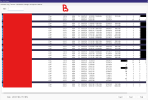
B: BI cameras tab from the VM after things after started going pretty bad and a handful of yellow icons.
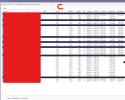
C: BI cameras tab from my local machine with BI UI closed on the VM. Looks good.
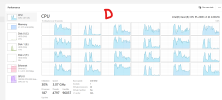
D: Task Manager performance tab from within the VM with BI UI not running.
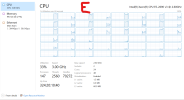
E: Task Manager performance tab from the host.
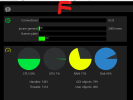
F: BI resource usage screen from the VM via RDP.
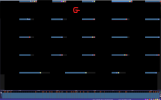
G: BI "all cameras" view from the VM showing 12 physical cameras, 12 clones (9 cameras with one clone each, 1 camera with three clones, 2 cameras with no clones). Showing 9 yellow icons. 6 are for FPS. 3 are for GetEvents failure.

Thank you for your response and taking the time to look at this (if you do)!
 

Attachments

  • B.png
    B.png
    100.5 KB · Views: 14
  • C.png
    C.png
    165.2 KB · Views: 15
  • D.png
    D.png
    239.3 KB · Views: 14
  • E.png
    E.png
    101.6 KB · Views: 13
  • F.png
    F.png
    29.7 KB · Views: 12
  • G.png
    G.png
    219.2 KB · Views: 15
Tbh, I would just setup a small test PC having just BI running on it with the same configuration, to check how it works, before making any conclusions...
IMHO, the fewer layers and moving parts you have, the better...
Yes, I am considering this. Trying to think of the best way to expend my effort. It would be frustrating to migrate everything to a stand-alone PC only to have the same issues. But I think if I decide to stick with BI that is the next most logical troubleshooting step. A more commercial product would run in a virtualized environment without issue. That's the decision I have to make. On the commercial side I am less worried about the costs than just the ease of getting the licenses and still being able to largely control my system without needing support contracts, etc.
 
What OS version is your VM? Do you have some data on system resource usage? Your system sounds plenty powerful enough, but it would probably be a good idea to monitor CPU / Ram / network / disk IO while you are using the system, if you haven't already.
Windows 11 25H2. I posted the rest of the hardware specs and other diagnostic details in my previous post. Thank you for your time. I do appreciate it.
 
Fine, OK. My OS is Server 2022, and my hypervisor Qemu, but I shouldn't think it makes all that much difference.

Apologies if any of this sounds daft, or if I am pointing out anything you already spent ages thinking about. These are just my very first observations.

1. I have never personally seen, on my system, the 'UI glitches' you showed in G. Wait, silly me, that's probably you redacting your cameras :-). Can you show another screenshot, but with blur, not black masks? Is it just the icons you are showing or is some other part of the UI going wrong?

2. Are you definitely running BI as a Service?

3. Your MP/s value of 779 seems quite high. I have a system with about 130Mbps nominal on the NIC (compare to your 200), which shows about 195MP/s I think. So on your system, you have about 55% more Mbps on the NIC, but about 295% more MP/s, :wtf:. I suspect your clones are causing some of this (I don't use clones at the moment), because there is more video passing through the pipeline, but not having to arrive on the NIC (it's already there from the primary 'copy' of each camera.

4. Your substream are set to quite a high resolution! Most of them are on 2.1MP. I know 2.1MP seems like 'a lot less' than 8MP, but there are still many cameras whose highest resolution for the MAIN STREAM is 2MP. Usually, people run substream considerable below 2MP, and that is perfectly good enough for the substream. It's the whole point of the substream after all. So is there a reason this is so high?

5. In image C, it looks like most of your cameras are running 25FPS. There is nothing wrong with 25FPS, and I used to run it as standard, until someone pointed out to me it might not be needed. Now my standard frame rate is 15, unless otherwise required. Although the viseo is slightly less smooth with fast moving objects, 15FPS is still plenty for a reasonable viewing experience in my opinion, and it saves plenty of storage and processing power. Note, FPS usually doesnt impact the freeze frame shots, which is the key thing in most security applications, so consider lowering your FPS unless you have a specific reason to keep it high.

6. There is a big difference between C and B. With the more healthy one, it looks like most cameras are running 25FPS. In the other, many have dropped by nearly 10FPS, to pretty varying, random looking values. Now is this a symptom of having the BI UI open, or does this variation happen irrespective of that? Is it possible there is some other odd bottleneck, like on the network, or even a Poe switch running out of power budget and browning out?

Might be worth posting a few screenshots of your config, particularly HA etc.

Sorry, I'm not sure if any of that answers your question rewarding the capabilities of BI, just some thoughts.

My (albeit not too extensive) experience has so far lead me to believe that if / when I need my BI server to handle a higher workload, I just feed it more and it'll do it. E.G more cores and more RAM. I suppose at crazy high workloads it may start to break down, but keep in mind that BI supports up to 128 cameras - I doubt if the limit would have been raised from 64 to 128 if BI fundamentally couldnt handle it, if you see what I mean?
 
Sorry about not posting specs.

To me everything looks nominal on the hardware side. The Hyper-V host is an HP DL380 Gen 9 with an Intel Xeon E5-2690 v3 which has 24 cores and hyper-threading. Definitely not new but the host does not show signs of CPU exhaustion. The host has 128GB of RAM, 4 HDD for camera storage, 4 HDD for NAS storage, 2 HDD for HV secondary VHDXs, 2 SSD for OS VHDXs, and 2 NVMe for the host OS. The camera storage pool is passed through to the BI VM as a raw disk not as a VHDX. BI OS is on the SSD pool. No HDD VHDXs assigned to the BI VM. The host as 12 VMs running including BI.

Attached are some screenshots:

A: BI cameras tab from the VM via RDP (set to only refresh every 5 seconds) after BI has been running about 2-3 minutes. (for some reason this won't upload, but it is same view as B but everything looks better - not great, but better).
B: BI cameras tab from the VM after things after started going pretty bad and a handful of yellow icons.
C: BI cameras tab from my local machine with BI UI closed on the VM. Looks good.
D: Task Manager performance tab from within the VM with BI UI not running.
E: Task Manager performance tab from the host.
F: BI resource usage screen from the VM via RDP.
G: BI "all cameras" view from the VM showing 12 physical cameras, 12 clones (9 cameras with one clone each, 1 camera with three clones, 2 cameras with no clones). Showing 9 yellow icons. 6 are for FPS. 3 are for GetEvents failure.

Thank you for your response and taking the time to look at this (if you do)!
I apologize for not being super familiar with cloned camera behavior but I am not sure if your clones are actually sharing the decoder there. 1073.8 MP/s is a lot of video being processed, and you might be running into limits of memory bandwidth.

If your machine is dual socket, I am pretty sure Blue Iris is not NUMA aware or able to effectively use two NUMA nodes so if you have resources from two NUMA nodes allocated to the VM it could be contributing to performance problems.

The first thing I would do is lower the 2.1 MP sub streams to 480p / D1 or similar on as many cameras as possible to reduce the video decoder load and the amount of data flowing in and out of memory.
 
Camera brand matters a lot when it comes to ONVIF configuration. Axis camera disabled ONVIF by default. Some cameras has ONVIF default on, but you'd have to setup a user and password.

I use 10FPS and I capture license plates at 45mph+ at night!

BI might give an appearance of handling camera's resolution, FPS, keyframe, etc, but it really doesn't in my experience. Camera's configuration does.

I only use trigger from BI.

I feel BI is more a never ending project than a polished product, but that's a OK for me.
 
Image “D” looks like a GPU bottleneck to me. My 2080 Ti already has enough work to do with CodeProject.AI. It definitely does not like doing hardware decoding for the cameras or the web server at the same time. Maybe this is different with the RTX 4000 Ada, but I would try disabling that for testing.

The E5-2690 v3 is also pretty old hardware by now, and image “E” clearly shows individual CPU cores hitting their limits. Blue Iris really likes dedicated hardware.
 
Certainly look at those substreams.
I apologize for not being super familiar with cloned camera behavior but I am not sure if your clones are actually sharing the decoder there. 1073.8 MP/s is a lot of video being processed, and you might be running into limits of memory bandwidth.

This is interesting to me. I am very unfamiliar with clones, but it sounds like with the correct setup, the clones can share a decoder, preventing 2x'ing the workload just by cloning a camera? Or am I inferring wrong?

The E5-2690 v3 is also pretty old hardware by now, and image “E” clearly shows individual CPU cores hitting their limits. Blue Iris really likes dedicated hardware.
I am not disagreeing at all, and you are no doubt right - if you are pushing the limits, you want good H/W. That said, I don't believe in writing off H/W "just because its old" when in reality, often it will perform absolutely fine for many workloads (albeit perhaps not a power efficient as a modern equivalent for example).
 
  • Like
Reactions: bjs169
Sorry about not posting specs.

To me everything looks nominal on the hardware side. The Hyper-V host is an HP DL380 Gen 9 with an Intel Xeon E5-2690 v3 which has 24 cores and hyper-threading. Definitely not new but the host does not show signs of CPU exhaustion. The host has 128GB of RAM, 4 HDD for camera storage, 4 HDD for NAS storage, 2 HDD for HV secondary VHDXs, 2 SSD for OS VHDXs, and 2 NVMe for the host OS. The camera storage pool is passed through to the BI VM as a raw disk not as a VHDX. BI OS is on the SSD pool. No HDD VHDXs assigned to the BI VM. The host as 12 VMs running including BI.

Attached are some screenshots:

A: BI cameras tab from the VM via RDP (set to only refresh every 5 seconds) after BI has been running about 2-3 minutes. (for some reason this won't upload, but it is same view as B but everything looks better - not great, but better).
B: BI cameras tab from the VM after things after started going pretty bad and a handful of yellow icons.
C: BI cameras tab from my local machine with BI UI closed on the VM. Looks good.
D: Task Manager performance tab from within the VM with BI UI not running.
E: Task Manager performance tab from the host.
F: BI resource usage screen from the VM via RDP.
G: BI "all cameras" view from the VM showing 12 physical cameras, 12 clones (9 cameras with one clone each, 1 camera with three clones, 2 cameras with no clones). Showing 9 yellow icons. 6 are for FPS. 3 are for GetEvents failure.

Thank you for your response and taking the time to look at this (if you do)!

There have already been some good replies, and you are pushing about three times the load that I do even with a couple more cameras, due to the clones, FPS and higher substream res. Your CPU has very similar performance to my 9900K Proxmox host, albeit mine has a few newer CPU instruction and newer instructions can boost certain tasks (not sure which benefit BI though).

One point I haven't seen mentioned in the replies is that you have 32 set for AI connections according to the overview panel, which is far too high if you're using the built in AI (Ken even referred to this in the change log recently ). If you're using built in AI and many of those connections get used then that could exhaust the RAM you've assigned to the VM and/or cause some significant load spikes which could lead to other erratic behaviour. I would reduce that to 8 or 12. If you're using object tracking then BI6 defaults the AI to be used every 10 seconds for every camera if AI object tracking is enabled, and on motion for a camera that can be as high as once per 0.8secs using the default setting.

Setting up some Window performance monitoring to check resource usage 24x7 would also be a good idea to get a wider picture and find any serious spikes (RAM, CPU, GPU, disk I/O,disk delays, networking etc)
 
There have already been some good replies, and you are pushing about three times the load that I do even with a couple more cameras, due to the clones, FPS and higher substream res. Your CPU has very similar performance to my 9900K Proxmox host, albeit mine has a few newer CPU instruction and newer instructions can boost certain tasks (not sure which benefit BI though).

One point I haven't seen mentioned in the replies is that you have 32 set for AI connections according to the overview panel, which is far too high if you're using the built in AI (Ken even referred to this in the change log recently ). If you're using built in AI and many of those connections get used then that could exhaust the RAM you've assigned to the VM and/or cause some significant load spikes which could lead to other erratic behaviour. I would reduce that to 8 or 12. If you're using object tracking then BI6 defaults the AI to be used every 10 seconds for every camera if AI object tracking is enabled, and on motion for a camera that can be as high as once per 0.8secs using the default setting.

Setting up some Window performance monitoring to check resource usage 24x7 would also be a good idea to get a wider picture and find any serious spikes (RAM, CPU, GPU, disk I/O,disk delays, networking etc)
@rkn, I hadn't seen that note about the AI connections. I will take a look at that. Also a good idea to set up PerfMon to grab longer term stats as opposed to point-in-time.

@chaosengine, you indicated you felt that image D looks like a GPU-bound issue. Can you elaborate on what makes you suspect that? GPU is at 39% in that image. I am not sure what aspect of the GPU that "39%" refers to (3D, decode, etc.) or if it is a heuristic guess. Any thoughts? Also, agree the CPU is old but it doesn't seem bound. In fact, I was quite surprised how old it was when I was looking up info for this thread.

@EagleEye7, I can look at the streams, but I'd rather throw more hardware at it than dial back FPS or resolution. But, based on my understanding, and what the Cameras screen shows I do believe that clones share the bandwidth of the "master" camera. Only increase would be in additional CPU / GPU for processing triggers, AI, alerts, etc.

@iwanttosee, all cameras are from Andy or Dahua direct. Any specific tips with ONVIF in these cameras?

Thanks to all for participating and helping me out.
 
Yes, I am considering this. Trying to think of the best way to expend my effort. It would be frustrating to migrate everything to a stand-alone PC only to have the same issues. But I think if I decide to stick with BI that is the next most logical troubleshooting step. A more commercial product would run in a virtualized environment without issue. That's the decision I have to make. On the commercial side I am less worried about the costs than just the ease of getting the licenses and still being able to largely control my system without needing support contracts, etc.
I'm running 28+ cameras on a cheap refurb PC that I got off of amazon for $372 a year ago (costs more now), and it's been zero hassles.

I migrated from an even cheaper PC that had been running BI for 4 years, and migration was as easy as moving over the config file.

My storage space is a JBOD in a 4-bay external drive enclosure, so that migrated over with zero hassle as well.

I'd try the dedicated PC.
 
As an Amazon Associate IPCamTalk earns from qualifying purchases.
I'd try the dedicated PC.
I am interested to hear if you do try this. I don't have experience comparing VM vs Physical BI, I personally think that with the right setup, virtualization in itself should not inherantly cause BI issues. But, I am open to being corrected!

all cameras are from Andy or Dahua direct. Any specific tips with ONVIF in these cameras?
What issues are you having specifically? One thing I have had to do, since I prefer to have a dedicated "NVR" account on the cameras that the NVR (in this case BI) logs in with, is create that user under "ONVIF USER" tab. Seems to be different to regular user.
 
I am interested to hear if you do try this. I don't have experience comparing VM vs Physical BI, I personally think that with the right setup, virtualization in itself should not inherantly cause BI issues. But, I am open to being corrected!

If a VM is correctly configured (passthrough for GPU, correct virtualisation device drivers etc) then it works really well. I migrated both my dedicated BI systems to VMs (one on the same physical host) and its been far better as an overall experience for use and maintenance. A large percentage of the software we use is now running on various cloud platforms (I develop software) and even GPU intensive tasks like gaming and CAD can work well. I tested before and after and the performance difference was hard to measure it was that small.

I now how four VM hosts (Proxmox now after moving from ESXi) running all my home services including routing/firewall software and being able to migrate a VM between hosts or have high availability is a game changer. Even if I had one PC for BI and no other services I would still run it in a VM on that host as I used to rely on Macrium Reflect for emergency recovery if things went bad, but I can now restore a snapshot or backup in under a minute.