hxhoang
n3wb
My Proxmox Windows 11, RTX A2000 setup works fine with built-in AI in Blue Iris 6.0.1.9.I have Proxmox, Windows 10, GeForce 1650, built-in AI, BI crashes with this error
Replies from Gemini with your error message:
The DmlExec exception in Blue Iris 6.0.1.8 indicates a failure within the DirectML (DML) execution provider. This typically happens because the AI runtime cannot properly communicate with your GPU drivers or is missing essential Windows system components required for hardware acceleration.
1. Update Visual C++ Redistributable
This is the most common fix for Blue Iris v6 crashes and AI initialization errors. Version 6 requires the latest v145 libraries.
Download and install the latest Visual C++ Redistributable (x64).
Reboot your computer after the installation to ensure the new libraries are registered.
2. Update GPU Drivers
DirectML (DML) relies on your graphics card's DirectX 12 capabilities. Outdated drivers often lack the specific instructions needed by newer ONNX models.
Intel Users: If you are using Integrated Graphics (like Iris Xe), download the latest drivers directly from the Intel Support site.
NVIDIA/AMD Users: Ensure you are on the latest "Game Ready" or "Studio" drivers.
3. Clear the AI Model Cache
If a previous version of Blue Iris or CodeProject.AI left behind corrupted temporary files, initialization may fail.
Stop the Blue Iris service and the CodeProject.AI service.
Navigate to your AI installation folder (usually C:\Program Files\CodeProject\AI).
Look for a temp or cache folder within the ONNX or specific model directories and delete its contents.
Restart the services.
4. Perform a "Full" Reinstall of Blue Iris
For version 6.0, the developer recommends a fresh installation rather than just an in-app update to ensure all new directory structures and dependencies are correctly placed.
Backup your settings first (Export in Blue Iris settings).
Uninstall Blue Iris, then download the latest full installer and reinstall. Your registry settings and camera configurations are typically preserved during this process.
5. Disable GPU Acceleration (Troubleshooting Step)
If you need your cameras back online immediately and hardware acceleration is failing, you can force the AI to use the CPU.
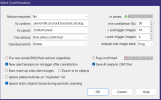
In the Blue Iris AI settings, change the execution provider from "Default" or "DirectML" to "CPU". If the error disappears, the issue is confirmed to be with your GPU driver or the DirectML compatibility layer.