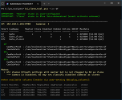
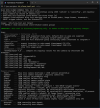
I've created a PowerShell utility to inventory and troubleshoot Blue Iris cloned cameras.
The script requires Blue Iris 6.0.7.4 or newer because it relies on the new JSON
These values were added by Ken in response to my attempts to determine exactly how Blue Iris identifies cloned cameras (post).
Features:
Example usage:
.\BI_clone_tool.ps1
.\BI_clone_tool.ps1 -Help
.\BI_clone_tool.ps1 -SuspectsOnly
.\BI_clone_tool.ps1 -All
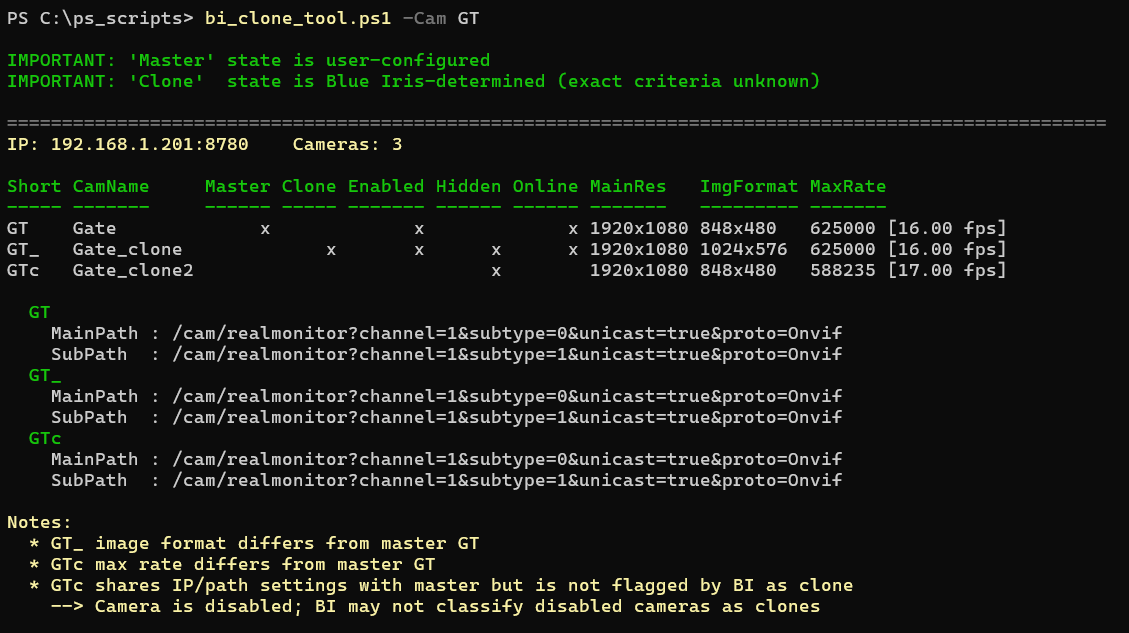
.\BI_clone_tool.ps1 -Cam GT
.\BI_clone_tool.ps1 -ExportCsv
.\BI_clone_tool.ps1 -ExportJson
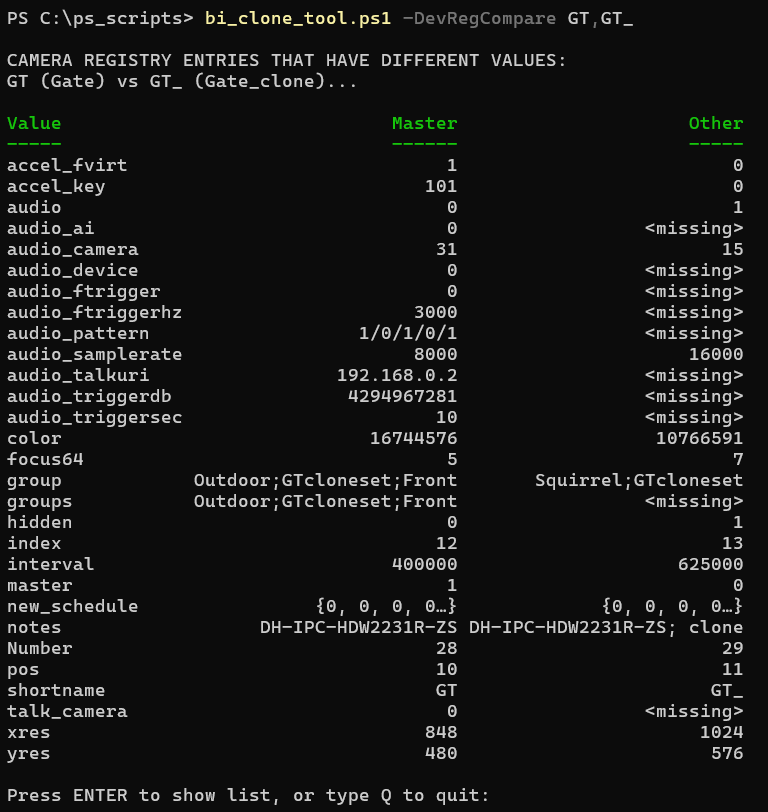
.\BI_clone_tool.ps1 -DevRegCompare GT,GT_
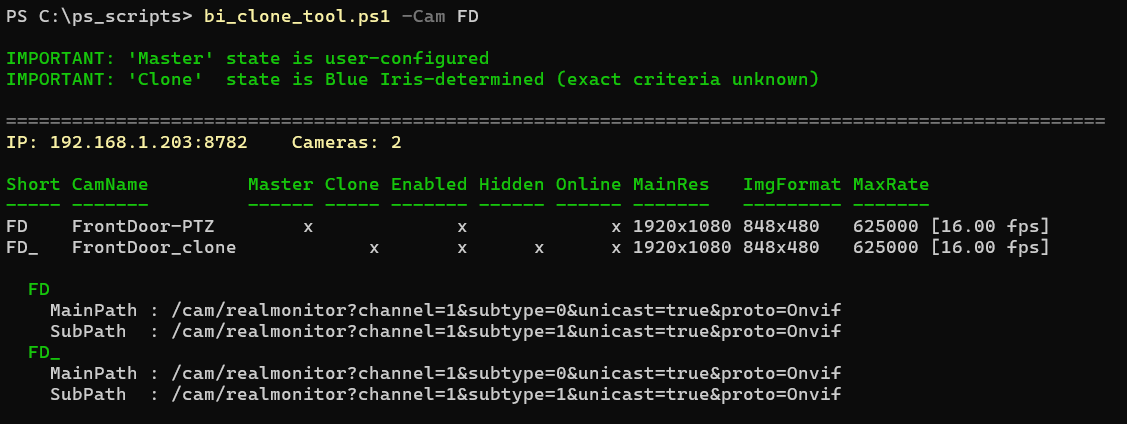
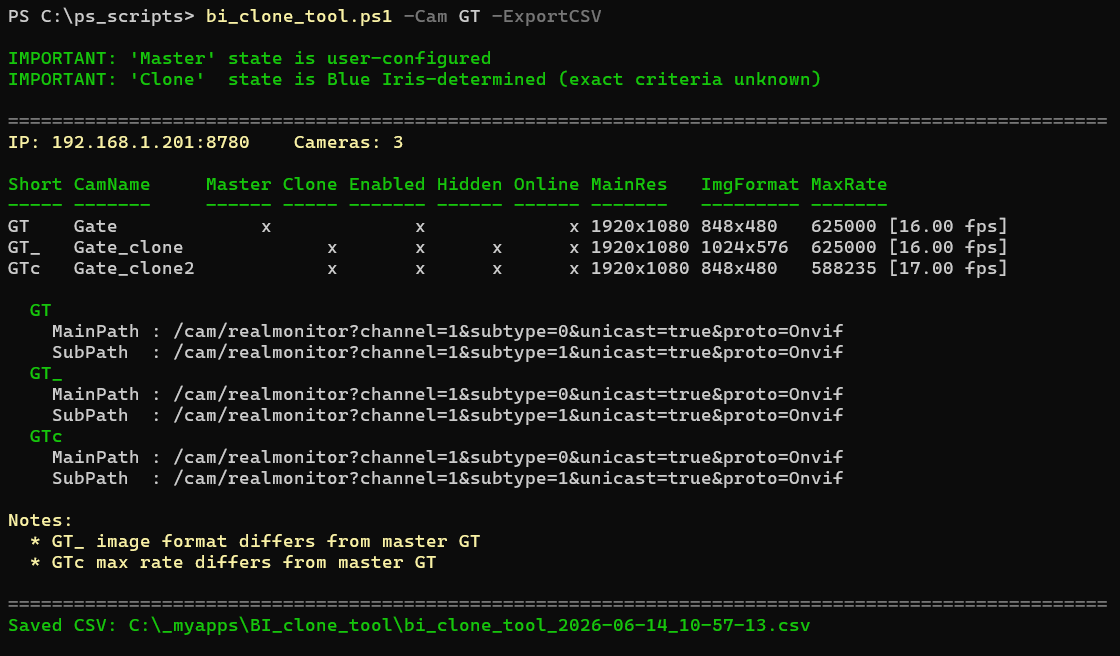
Example Screenshots:
In this example, Blue Iris recognizes the attempted clone, which has matching interrogated properties - except that it is hidden.
In this example, Blue Iris is recognizing both attempted clones despite the ImgFormat and MaxRate differences.
In this example, Blue Iris is not recognizing one attempted clone because it is NOT enabled.
Interesting observations:
The attached ZIP file contains 2 files:
BI_clone_tool.ps1
BI_clone_tool.user-settings.ps1
The included user-settings file must be edited before first use.
As always, review the script before running it.
If PowerShell blocks script execution, try:
or
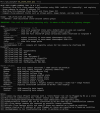
Here's the help screen
The tool is discovery/reporting only and makes no Blue Iris or registry changes.
Feedback, bug reports, and enhancement suggestions are welcome.
Version History
v1.2 (2026-07-01)
v1.1 (2026-06-14)
- Initial public release
The script requires Blue Iris 6.0.7.4 or newer because it relies on the new JSON
camlist values:isCloneisCloneMasterThese values were added by Ken in response to my attempts to determine exactly how Blue Iris identifies cloned cameras (post).
Features:
- Groups cameras by shared IP address.
- Displays Blue Iris-reported Clone Master (user-configured) and Clone (BI-determined) status.
- Shows main and sub stream paths from the JSON
camconfigcommand. - Shows
Camera settings > Video tab > Image Formatsettings. - Shows
Camera settings > Video tab > Max. ratesettings. - Highlights possible clone-related configuration anomalies.
- Exports results to CSV or JSON.
- Includes an optional registry comparison mode for troubleshooting.
- Does not make any changes to Blue Iris or the registry.
Example usage:
.\BI_clone_tool.ps1
.\BI_clone_tool.ps1 -Help
.\BI_clone_tool.ps1 -SuspectsOnly
.\BI_clone_tool.ps1 -All
.\BI_clone_tool.ps1 -Cam GT
.\BI_clone_tool.ps1 -ExportCsv
.\BI_clone_tool.ps1 -ExportJson
.\BI_clone_tool.ps1 -DevRegCompare GT,GT_
Example Screenshots:
In this example, Blue Iris recognizes the attempted clone, which has matching interrogated properties - except that it is hidden.
In this example, Blue Iris is recognizing both attempted clones despite the ImgFormat and MaxRate differences.
In this example, Blue Iris is not recognizing one attempted clone because it is NOT enabled.
Interesting observations:
- Cameras sharing the same IP address are not necessarily classified by Blue Iris as clones.
- Cameras may still be classified as clones even when some visible camera settings differ.
- The script can identify orphaned Clone Masters, multiple Clone Masters, and other unusual clone configurations.
I had a camera that Blue Iris would not recognize as a clone, despite the fact that it shared the same IP address as the intended Clone Master. The script also showed that the main and sub stream paths, Image Format, and Max. rate settings all appeared to match.
Using the -DevRegCompare option, I eventually realized that I had originally created the clone from a different physical camera that had occupied the same location years earlier and was later replaced. I had hidden the clone and simply overlooked it during the camera replacement (out of sight, out of mind).
Although the current camera and its intended clone shared the same IP address and appeared identical in all obvious clone-adjacent settings, Blue Iris still refused to classify the camera as a clone.
This suggests that Blue Iris may track additional camera-specific information beyond the settings exposed in the UI, JSON API, or obvious registry values. Recreating the clone from the current camera resolved the issue.
The attached ZIP file contains 2 files:
BI_clone_tool.ps1
BI_clone_tool.user-settings.ps1
The included user-settings file must be edited before first use.
As always, review the script before running it.
If PowerShell blocks script execution, try:
powershell.exe -NoProfile -ExecutionPolicy Bypass -File .\BI_clone_tool.ps1or
pwsh -NoProfile -ExecutionPolicy Bypass -File .\BI_clone_tool.ps1 -HelpHere's the help screen
The tool is discovery/reporting only and makes no Blue Iris or registry changes.
Feedback, bug reports, and enhancement suggestions are welcome.
Version History
v1.2 (2026-07-01)
- Added RegSubRes column
- Added Anamorphic column
- Distinguished Blue Iris API vs registry values (Reg* prefixes)
- Improved Image Format / Anamorphic diagnostics
v1.1 (2026-06-14)
- Initial public release
Attachments
Last edited: