Hi everyone,
I’ve been a long time lurker of this forum and found it very helpful when setting up my camera system about 5 years ago. As many, I started out wrong by following Dahua’s instructions and then ended up here following @bigredfish PSA for Dahua POE NVR and never looked back.
I have however found myself in a bit of a pickle the last few days. I decided to add another camera to my NVR4216-16P-4KS2 by using the ‘just plug it in and wait’ method and all was working well. Until… I decided that port 14 wasn’t actually a logical place for this camera to live and I wanted to move it to port 9. So I unplugged camera 9, deleted the entry, restarted the NVR and plugged in my new camera on port 9. And then… nothing. It didn’t want to come down to the bottom of the camera page, no matter how long I waited.
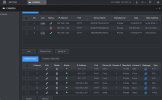
I’ve since tried every trick in the book. Restarting the NVR numerous times with the cam plugged in or not, factory resetted the cam with the hard reset button, unplugged, restarted NVR, replugged, waited… nothing helped. In fact, after the factory reset the camera shows a red cross at the upper section of the page and does nothing with it. Sounds like a password mismatch right? But how can this be on a factory reset? Plus the IP stays at 192.168.1.108 and isn’t assigned a 10.1.1.x. I’ve even taken the new camera down and hooked it up directly to the NVR with a new cable to rule out cable issues, to no avail.
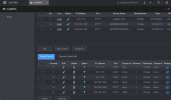
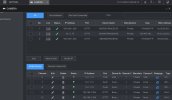
So I thought I’d try to plug in the original camera to port 9 to see if I can get that one back to work. And sure enough it shows up at the top list, including its internal IP of 10.1.1.x and a green checkmark… but doesn’t move to the bottom! (Attached picture). So now I’m stuck and unsure what to do next. Hope to get your suggestions and see if I can untangle this mess. If I’d known I would have just left it at port 14…
PS before anybody asks, everything is on the latest firmware:
NVR4216-16P-4KS2: 4.001.0000005.4.R, Build Date: 08-08-2024
DH-IPC-HDW3441TP-ZAS: 2.800.0000000.47.R, Build Date: 2025-02-17
I’ve been a long time lurker of this forum and found it very helpful when setting up my camera system about 5 years ago. As many, I started out wrong by following Dahua’s instructions and then ended up here following @bigredfish PSA for Dahua POE NVR and never looked back.
I have however found myself in a bit of a pickle the last few days. I decided to add another camera to my NVR4216-16P-4KS2 by using the ‘just plug it in and wait’ method and all was working well. Until… I decided that port 14 wasn’t actually a logical place for this camera to live and I wanted to move it to port 9. So I unplugged camera 9, deleted the entry, restarted the NVR and plugged in my new camera on port 9. And then… nothing. It didn’t want to come down to the bottom of the camera page, no matter how long I waited.
I’ve since tried every trick in the book. Restarting the NVR numerous times with the cam plugged in or not, factory resetted the cam with the hard reset button, unplugged, restarted NVR, replugged, waited… nothing helped. In fact, after the factory reset the camera shows a red cross at the upper section of the page and does nothing with it. Sounds like a password mismatch right? But how can this be on a factory reset? Plus the IP stays at 192.168.1.108 and isn’t assigned a 10.1.1.x. I’ve even taken the new camera down and hooked it up directly to the NVR with a new cable to rule out cable issues, to no avail.
So I thought I’d try to plug in the original camera to port 9 to see if I can get that one back to work. And sure enough it shows up at the top list, including its internal IP of 10.1.1.x and a green checkmark… but doesn’t move to the bottom! (Attached picture). So now I’m stuck and unsure what to do next. Hope to get your suggestions and see if I can untangle this mess. If I’d known I would have just left it at port 14…
PS before anybody asks, everything is on the latest firmware:
NVR4216-16P-4KS2: 4.001.0000005.4.R, Build Date: 08-08-2024
DH-IPC-HDW3441TP-ZAS: 2.800.0000000.47.R, Build Date: 2025-02-17