UI3 doesn't switch to main stream when viewing single camera (Live View and Timeline)

I installed BI 6 over Bi5 on my 2 pc's.
Wanted see BI 6 run on a i5-4590 in dell optiplex.
everything was ok, but since i've seen this thread topic,
It reminds me of the difference I saw in console view window sizing
between the 2 computers.
I goofed around with anamorphic screen sizing on 1 PC,
Not being too OCD i decided leave well enough alone on the other.
Just an FYI.
 
To the best of my knowledge that setting has nothing to do with UI3, that setting applies to the multicamera view in the BI console window only!

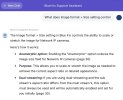
If you read the help for the screen it says the following

Image Format
In the case of a Network IP camera, the image size and max frame rate are determined for you based on what the camera is sending to Blue Iris. If these are not as you expect, they
need to be set in the camera’s browser interface directly. In some cases, there may be parameters as part of the video URL which control these settings however.
@Bruce_H - thank you. Yes, I read that when I rebuilt my NVR (Blue Iris server) last year and there was another post I found somewhere that said if the detected image size doesn't match what's configured in the camera, change it to match. At that time, it seemed (just based on reading and not actual validation) like this image size setting would have an impacted on the resolution of the recorded video - along the lines of "camera is configured to send a 2688x1520 mainstream but, I can choose to record at a lower resolution as defined in image size". I've now tried playing recorded videos from before and after I made the change yesterday and they look the same (high resolution and image quality).
Here's what is going on:

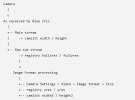
IP camera sub streams are usually at an incorrect aspect ratio such that if the video is played without scaling, it looks squished. Anamorphic scaling is required in order to make it look correct. So when Blue Iris discovers a sub/main stream relationship for the first time, it automatically configures the Image format > Size and Anamorphic settings to stretch the sub stream to more-closely match the aspect ratio of the main stream. The size it computed gets automatically inserted into the Size box.

Somewhere along the way, your Size values got changed accidentally to the main stream resolution. Then Blue Iris began thinking your sub stream resolution was the same as your main stream resolution, and unexpected behavior issues come with that.
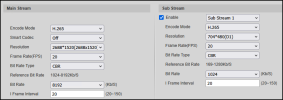
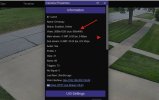
Here are my Dahua camera's video settings:
1782733103005.png
From what I can tell, the Main Stream has the correct aspect ratio while the Sub Stream 1 is squished; however, this is the highest resolution in the dropdown for Sub stream 1. Within Blue Iris, both main stream and sub stream 1 are setup / mapped for each camera. I was under the assumption that the Image Size on the Video page would (should) match what is configured on the Camera's main stream as long as it's the correct aspect ratio. When I play the native RTSP streams in VLC, I can see that main stream has the correct aspect ratio and resolution while sub stream 1 is definitely squished.

That said, given these two stream definitions on the camera, I'm curious how BI ended up with 848x480 as the computed size.

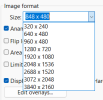
And yes, I picked 2688x1520 from the Image Size drop down because (a) as I said above, I read somewhere that this should match the camera's mainstream resolution for optimal recording and (b) the resolution defined within the camera's settings was available as an option I could select in the dropdown. If BI intends this to be a computed field, am curious why it is even editable and with a list of resolution values in a dropdown.

I wonder if he exported his Blue Iris .reg config from the old hardware to the new hardware.
or if this is a bug in Ver 6.
Yes, this is exactly what happened. Last year, prior to rebuilding my server, I was on v5.9.9.73. With the new hardware, I installed v5.9.9.98, imported the settings from the previous build to avoid reconfiguring cameras. And then, went through and updated settings on both, the cameras and BI like Image Size since my new hardware was significantly more capable (previous server was on a 4th gen Intel i5 and I had to limit the Dahuas to 1080p and H264). Once I had the recording quality I was expecting along with live view on the BI console (didn't check UI3 at that time - my bad), I saved the settings and upgraded to v6 with the same settings. Which is when I detected the "solo camera rendering substream 1 in UI3" issue along with other performance related issues with the built in AI. Tried a few different versions and then rolled back to v5 (tried various v5.8.x and v5.9.x) but always retained exported and imported settings between version changes which meant I had my manually edited image size across all of these versions. With v5.9.973 and CodeProject, I have the AI functionality I need, everything performs well and the only lingering issue was this solo camera in UI3.

Do you all have this mismatch as well? Between your mainstream and substream1 settings on your camera vs the image size computed by BI? If so, is it as far off as mine?
 
That said, given these two stream definitions on the camera, I'm curious how BI ended up with 848x480 as the computed size.

Do you all have this mismatch as well? Between your mainstream and substream1 settings on your camera vs the image size computed by BI? If so, is it as far off as mine?
It's keeping a consistent aspect ratio with the main stream: 1520 ÷ 2688 = 0.56547619, so you can solve for X with a different resolution by: 480 ÷ 0.56547619 = 848.8421. It will avoid odd numbers, and ideally, the number will be divisible by 4, 8, or even 16. I've also seen 856 x 480 (closer to actual 16:9), and some I just set to 1280 x 720 (note that this will make it use the sub stream for 720p—which is what I run the sub stream at on the 5442 cameras).

But the D1 and VGA resolutions are anamorphic on these 16:9 cameras, so yes, there will be a resolution "mismatch" involved to stretch the squished stream back out to the correct aspect ratio.
 
and some I just set to 1280 x 720 (note that this will make it use the sub stream for 720p—which is what I run the sub stream at on the 5442 cameras).

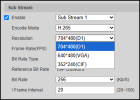
How / where do you set the substream to 720p? On my 5442 cameras, the only resolution options I see for substream 1 in the camera settings are these three and I don't see a way to add any in manually.
1782736969972.png
 
Here's what is going on:

IP camera sub streams are usually at an incorrect aspect ratio such that if the video is played without scaling, it looks squished. Anamorphic scaling is required in order to make it look correct. So when Blue Iris discovers a sub/main stream relationship for the first time, it automatically configures the Image format > Size and Anamorphic settings to stretch the sub stream to more-closely match the aspect ratio of the main stream. The size it computed gets automatically inserted into the Size box.

Somewhere along the way, your Size values got changed accidentally to the main stream resolution. Then Blue Iris began thinking your sub stream resolution was the same as your main stream resolution, and unexpected behavior issues come with that.
Just to add a little background from a couple of email exchanges I had with Ken over the past year...

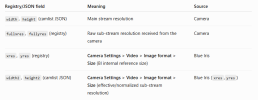
One thing that wasn't immediately obvious to me is that Camera Settings > Video > Image format > Size is more than just a display of the camera's configured sub stream.

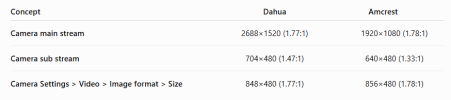
For dual-stream cameras, Blue Iris uses this value as an internal reference size. If the camera's sub stream aspect ratio doesn't match the main stream, BI automatically enables the Anamorphic option and adjusts the displayed width so the sub stream has the same aspect ratio as the main stream. For example, one of my Dahua cameras outputs a 704x480 sub stream, but BI displays it as 848x480 because that is the anamorphically corrected equivalent. The camera is still sending 704x480.

Ken further explained that this Image format size is ALSO used when Blue Iris decides which stream should satisfy an image request. Blue Iris appears to internally normalize the incoming streams using this size and aspect ratio, and if the requested image size is at or below this threshold, BI can use the sub stream; larger requests require the main stream. That seems consistent with what @bp2008 is describing here regarding UI3's stream selection.

That means this same setting has effects outside of live viewing. It influences the behavior of HTTP image extraction, and Ken mentioned that AI DAT images are resized independently (to roughly 480p) so they don't become excessively large. So this field ends up affecting several internal BI decisions, not just how the Video tab is populated.

One additional thought (my speculation, not something Ken explicitly stated): this architecture may also be why stream switching in the BI timeline is usually so seamless. Since BI has already normalized the streams to a common aspect ratio and working geometry, it can switch between sub- and main-stream frames without the obvious stretching or width changes you'd expect if it simply swapped between the camera's native 704x480 and 2688x1520 images. The net effect would be what we actually see -- the avoidance of visible discontinuities during timeline playback (disregarding text overlays, which do change with the source stream).

That same behavior may also explain why mixed-stream animated GIFs generated from BI clips with my PowerShell utility, BI_gif_tool.ps1, tend to transition smoothly between sub- and main-stream frames. The frames are already normalized before they're handed off for processing.

It took me a while to realize that Image format > Size isn't simply reporting what the camera is sending; it's an internal reference size that Blue Iris appears to use in several places.

So my takeaway is that the Image format > Size setting is really a central piece of BI's dual-stream architecture, rather than simply a display of the camera's configured sub-stream resolution.

 
Last edited:
Thanks for the awesome explanation, @jaydeel. Based on everything you've said, I'm even more unclear that Image Size field is editable and includes a list of predefined resolutions in a dropdown. Everything you have said seems to indicate that this is a computed resolution and affects several internal BI decisions - if so, why make it editable? Even if it's editable, for folks like me who mistakenly assume that the image size should match the mainstream resolution from the camera, a warning of implications would be nice. Right?
 
While checking mine I also noticed that 3 identical cameras that have identical camera settings as far as streams go, behave differently in BI and also show the image size 848x480 on one of them and 856x480 on the other two. Those two cams will almost immediately display the mainstream. The cam that shows 848x480 you can definitely tell when it switches to mainstream. So again, all 3 cams have identical settings as shown in video.