


Reducing CPU Usage
- Thread starter Arjun
- Start date
You are using an out of date browser. It may not display this or other websites correctly.
You should upgrade or use an alternative browser.
You should upgrade or use an alternative browser.
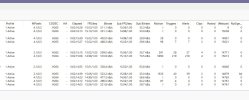

OK that all looks good.
And just confirming this is a 9th gen Intel correct?
Let's try this.
Disable every camera.
With every camera disabled, the CPU should be 0%. If it isn't then something else is running and conflicting or the install is corrupt.
If it is 0%, then slowly enable a camera and let it sit for 10min and see what the CPU does. The slowly add each camera and wait 10min between each and when one spikes the CPUI, then you know the bad cam and you would delete that camera out of BI and re-add by scratch.
And just confirming this is a 9th gen Intel correct?
Let's try this.
Disable every camera.
With every camera disabled, the CPU should be 0%. If it isn't then something else is running and conflicting or the install is corrupt.
If it is 0%, then slowly enable a camera and let it sit for 10min and see what the CPU does. The slowly add each camera and wait 10min between each and when one spikes the CPUI, then you know the bad cam and you would delete that camera out of BI and re-add by scratch.


Bruce_H
Getting comfortable
@wittaj In your experience would the cameras using H265 encoding have any effect on his CPU usage?OK that all looks good.
And just confirming this is a 9th gen Intel correct?
Let's try this.
Disable every camera.
With every camera disabled, the CPU should be 0%. If it isn't then something else is running and conflicting or the install is corrupt.
If it is 0%, then slowly enable a camera and let it sit for 10min and see what the CPU does. The slowly add each camera and wait 10min between each and when one spikes the CPUI, then you know the bad cam and you would delete that camera out of BI and re-add by scratch.
@wittaj In your experience would the cameras using H265 encoding have any effect on his CPU usage?
It could. Even though BI6 is supposed to accept H265 better, there could be a corrupt camera protocol that is wonking it out. Or maybe the graphics driver is throwing fits with it.
H265 has a higher compression, which gives allows for lower bit rates, but this = more compute needed to decode the stream. Shouldn't be causing all that issue but tru changing to H264 for now anyway.
Can you post another picture of your Status window, specifically including the MP/s figure? Might be helpful?
And maybe one more picture of your camera configuration, showing the main and sub stream settings.
Can you post another picture of your Status window, specifically including the MP/s figure? Might be helpful?
And maybe one more picture of your camera configuration, showing the main and sub stream settings.
Disabling every camera made little to no difference = 25%
I closed Blue Iris shortly after there was some noticeable CPU Usage ~11%
Pictures below
@wittaj @EagleEye7
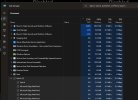
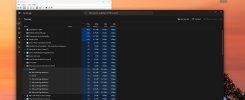
I closed Blue Iris shortly after there was some noticeable CPU Usage ~11%
Pictures below
@wittaj @EagleEye7
Probably all of that malware from browsing unexplored websitesWow that is still high - something is whacked out.
 (joking)
 I should probably call 1-800-GOT-WIFE for a free tech support consultation

Even with photography as one of many hobbies of mine
could have guessed that, just sayin'


Correct, also happening to another Blue Iris system (one of my neighbors)So you're saying there is still 20+% CPU use AFTER all cameras are disabled?

The only thing I can think of that BI may be doing with all cameras disabled is sending streams through its web sever (e.g. to mobile apps or UI3). Video encoding still takes CPU cycles even if it is all just a bunch of static "no signal" images. Check BI status window, connections tab for this.
Some systems may also have issues in Windows's Power options (start menu -> search for
Some systems may also have issues in Windows's Power options (start menu -> search for
power options) as described here: If your system is affected, it can cause the CPU to run at a lower frequency than it is otherwise capable of, causing everything on the computer to use more CPU time than it should.
Thanks, I've already tried that - CPU is set to High performance and I have also decoding only when requiredThe only thing I can think of that BI may be doing with all cameras disabled is sending streams through its web sever (e.g. to mobile apps or UI3). Video encoding still takes CPU cycles even if it is all just a bunch of static "no signal" images. Check BI status window, connections tab for this.
Some systems may also have issues in Windows's Power options (start menu -> search forpower options) as described here: If your system is affected, it can cause the CPU to run at a lower frequency than it is otherwise capable of, causing everything on the computer to use more CPU time than it should.
I closed Blue Iris and stopped the service - even with the operating system idling, it still sees at minimum 18-20% CPU usage. I have a suspicion it is due to the fact that I never installed a debloated version of Windows 11
That is a wild amount of CPU usage for not even having BI running.Thanks, I've already tried that - CPU is set to High performance and I have also decoding only when required
I closed Blue Iris and stopped the service - even with the operating system idling, it still sees at minimum 18-20% CPU usage. I have a suspicion it is due to the fact that I never installed a debloated version of Windows 11
It may be time for an OS reinstall. You could try debloating first just to see if it makes a difference. I've used Revision before -- install with Ameliorated -- These debloating tools generally are recommended to be used on a fresh Windows installation to reduce the chance of custom things you did causing unexpected breakage. But if you're willing to break things and maybe need to reinstall Windows, then you can go ahead and try debloating before resorting to the full reinstall. If you do reinstall Windows, look into tiny11.
Probably also worth seeing if your CPU is running too hot.
That'll show you the CPU temperature and "Tj. Max" which is the max temperature your CPU is allowed to reach before it thermal throttles causing big loss of performance. It also shows you the CPU core frequencies so you can compare with the CPU's spec sheet to know if it is reaching advertised speeds.
Generally an idle machine should be around 60°C or below (its even possible to be below 40°C if the CPU cooling is good). Under a significant load it can be expected to rise to 70°+ but it will generally spend most of its time significantly below the Tj. Max value unless you have insufficient CPU cooling. Here's mine for example:
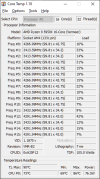
Mine used to run hotter than this but I enabled an "Eco mode" in my BIOS settings which reduced its power consumption pretty well, and power consumption = heat.

Thanks, do you think it might be necessary to repaste the thermal paste on the CPU?That is a wild amount of CPU usage for not even having BI running.
It may be time for an OS reinstall. You could try debloating first just to see if it makes a difference. I've used Revision before -- install with Ameliorated -- These debloating tools generally are recommended to be used on a fresh Windows installation to reduce the chance of custom things you did causing unexpected breakage. But if you're willing to break things and maybe need to reinstall Windows, then you can go ahead and try debloating before resorting to the full reinstall. If you do reinstall Windows, look into tiny11.
Probably also worth seeing if your CPU is running too hot.
That'll show you the CPU temperature and "Tj. Max" which is the max temperature your CPU is allowed to reach before it thermal throttles causing big loss of performance. It also shows you the CPU core frequencies so you can compare with the CPU's spec sheet to know if it is reaching advertised speeds.
Generally an idle machine should be around 60°C or below (its even possible to be below 40°C if the CPU cooling is good). Under a significant load it can be expected to rise to 70°+ but it will generally spend most of its time significantly below the Tj. Max value unless you have insufficient CPU cooling. Here's mine for example:
View attachment 236257
Mine used to run hotter than this but I enabled an "Eco mode" in my BIOS settings which reduced its power consumption pretty well, and power consumption = heat.