
If your here you are probably familiar with this thread "How to view Dahua cameras without browser plugins". My cameras are of 2018 vintage and I've also been struggling. ChatGPT found this solution for me but your mileage may vary.
This was tested with Win 11 in VirtualBox running on Ubuntu:
1. Close Edge completely.
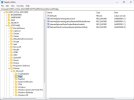
2. Open Registry Editor and go to:
HKEY_LOCAL_MACHINE\SOFTWARE\Policies\Microsoft\Edge
If the Edge key doesn't exist, create it.
3. Create these three DWORD (32-bit) values:
DWORD Value
RedirectSitesFromInternetExplorerRedirectMode = 0
InternetExplorerIntegrationLevel = 1
InternetExplorerIntegrationReloadInIEModeAllowed = 1
The important one for IE Mode is:
InternetExplorerIntegrationLevel = 1
which means IEMode.
Optional to add a button to the toolbar:
InternetExplorerModeToolbarButtonEnabled = 1
4. Start Edge and go to:
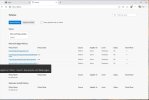
edge:/policy
Click Reload policies.
You should then see the IE integration policies listed.
5. Restart Edge.
6. Enter your camera IP address
7. Select Edge configuration, 3 dots, and choose: "Reload in Internet Explorer mode".
8. After login select download plugin.
Note: I found that you can't immediately run the plugin. For some reason it needs to be saved first, then run it, follow prompts to allow and draw your tripwires.
This was tested with Win 11 in VirtualBox running on Ubuntu:
1. Close Edge completely.
2. Open Registry Editor and go to:
HKEY_LOCAL_MACHINE\SOFTWARE\Policies\Microsoft\Edge
If the Edge key doesn't exist, create it.
3. Create these three DWORD (32-bit) values:
DWORD Value
RedirectSitesFromInternetExplorerRedirectMode = 0
InternetExplorerIntegrationLevel = 1
InternetExplorerIntegrationReloadInIEModeAllowed = 1
The important one for IE Mode is:
InternetExplorerIntegrationLevel = 1
which means IEMode.
Optional to add a button to the toolbar:
InternetExplorerModeToolbarButtonEnabled = 1
4. Start Edge and go to:
edge:/policy
Click Reload policies.
You should then see the IE integration policies listed.
5. Restart Edge.
6. Enter your camera IP address
7. Select Edge configuration, 3 dots, and choose: "Reload in Internet Explorer mode".
8. After login select download plugin.
Note: I found that you can't immediately run the plugin. For some reason it needs to be saved first, then run it, follow prompts to allow and draw your tripwires.