

if you're setting up a new PoE NVR system or expanding an existing one, here’s a quick, no-nonsense DIY guide on getting everything connected and configured correctly without needing a pro.
️ What You Need
NVR with built-in PoE ports & IP cameras
CAT6 Ethernet cables (one per camera)
Surveillance-grade Hard Drive
Monitor/TV (HDMI/VGA) & USB Mouse
 The 5-Step Setup
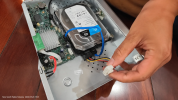
1. Install the Hard Drive
Always install the HDD before powering up. Connect both the SATA data and power cables firmly. Pro-tip: Never use standard desktop drives for this—they aren't built for 24/7 write cycles and will fail quickly. Stick to surveillance-grade drives.
2. Connect Display & Network
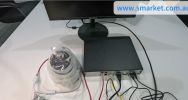
Run an HDMI/VGA cable from the NVR to your monitor. Then, run a CAT6 cable from the NVR’s LAN port to your home router/modem.
Note: Do not plug the router cable into the NVR’s PoE ports!
3. Power On & Initial Config
Boot up the NVR. The setup wizard will prompt you to:
Create a strong admin password (Store this safely; resetting it is a pain).
Set your correct Time Zone (crucial for reviewing footage later).
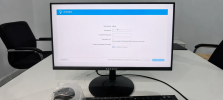
Format the new hard drive (takes about 1-2 mins).
Ensure DHCP is enabled so the NVR gets an IP address from your router.
4. Connect Cameras to PoE Ports
Run your CAT6 cables from the cameras to the NVR's numbered PoE ports. The order doesn't matter. Push the RJ45 connectors in until they click.
Distance Limit: Standard PoE works up to 100 meters (330 ft). For longer runs, you'll need an Ethernet extender or a mid-point PoE switch.
5. Auto-Detection
If you are using same-brand cameras and NVR, detection is automatic. The live feeds should pop up on your monitor within 30–60 seconds.
I wrote a longer version on our site if anyone wants to see How to Connect Security Cameras to Your NVR — A DIY Guide for Australian Homes
Happy to answer questions on zone config or NVR pairing.
️ What You Need
NVR with built-in PoE ports & IP cameras
CAT6 Ethernet cables (one per camera)
Surveillance-grade Hard Drive
Monitor/TV (HDMI/VGA) & USB Mouse
The 5-Step Setup1. Install the Hard Drive
Always install the HDD before powering up. Connect both the SATA data and power cables firmly. Pro-tip: Never use standard desktop drives for this—they aren't built for 24/7 write cycles and will fail quickly. Stick to surveillance-grade drives.
2. Connect Display & Network
Run an HDMI/VGA cable from the NVR to your monitor. Then, run a CAT6 cable from the NVR’s LAN port to your home router/modem.
Note: Do not plug the router cable into the NVR’s PoE ports!
3. Power On & Initial Config
Boot up the NVR. The setup wizard will prompt you to:
Create a strong admin password (Store this safely; resetting it is a pain).
Set your correct Time Zone (crucial for reviewing footage later).
Format the new hard drive (takes about 1-2 mins).
Ensure DHCP is enabled so the NVR gets an IP address from your router.
4. Connect Cameras to PoE Ports
Run your CAT6 cables from the cameras to the NVR's numbered PoE ports. The order doesn't matter. Push the RJ45 connectors in until they click.
Distance Limit: Standard PoE works up to 100 meters (330 ft). For longer runs, you'll need an Ethernet extender or a mid-point PoE switch.
5. Auto-Detection
If you are using same-brand cameras and NVR, detection is automatic. The live feeds should pop up on your monitor within 30–60 seconds.
I wrote a longer version on our site if anyone wants to see How to Connect Security Cameras to Your NVR — A DIY Guide for Australian Homes
Happy to answer questions on zone config or NVR pairing.