system performance on new computer

Left Coast Geek

Getting comfortable
May 20, 2021
406
407
mid-left coast
my old NVR computer died, so I got a newer one. old one was a HP EliteDesk 800 Mini G2 w/ a I7-6700, new one is a EliteDesk 800 Mini G6, that has a I5-10600T at 2.3Ghz. Old one was Windows 10 Pro, new one is Win 11 Pro.


new one is painful to watch the live views OR any recorded video, the video stutters badly, even a single camera full screen live view. exact same BI configuration, I imported the settings into the new one. I only have 5 cameras active, and only record on motion trigger, and don't have any AI enabled. Video is Intel UHD 630 on the new one,

is this likely a Win11 issue, or is it hardware configuration or something?
 
  • Like
Reactions: mat200
Have you completed every item on this list.
Also, make certain you have excluded anything Blue Iris according to the Blue Iris help file from any antivirus software, that includes windows Defender.

Make sure you are using H264H codec in the cams.

You do know that a T processor, is basically just a Laptop processor and will have heating issues' if your not careful with the computers config.
 
  • Like
Reactions: mat200
hmmm, i should be able to start the BlueIris Service from the Windows Service Manager, right? It starts and stops without any explanations, i'm not sure where to look for logs. I created a User and set its password and set the service to use that user.

(edit)

ok, I added the service User account I'd created to the Administrators group, and now the service starts and BI starts. phew.

I thought there was a group specifically for Local Service or something like that but I don't see it in Win11 Pro.

(edit)

anyways, both live video and video playback seems much smoother now. I think tomorrow I'm going to go through a checklist on cleaning garbage out of win11
 
  • Like
Reactions: Flintstone61
You'd think it would not be the processor or Memory as both are big upgrades. ( the i7-6700T has a higher base frequency 2.80GHZ than the i5-10500T with 2.30GHZ frequency)
I wonder if the new Hard drive is some high efficiency el-junko piece of dung with an SMR drive. I had playback issues on my first BI rig with an SMR drive in the mix.
I wonder if you may benefit by adding each camera individually as a new camera.
Or try just a few and see the CPU% moves either way.
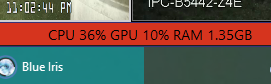
I just made a spare PC for BI out of a 9020 Optiplex i5-4590 , running 12 cams with AI enabled averaging 28% -35% CPU and 6-10% GPU
and the damn thing is reasonably proficient.
And its much quieter than the 2-8 TB's of "pro" WD 82PURZ flailing about like a junkie in the closet looking for that last doobie in that one shirt that he " was sure" he still had.... over in my other PC.
1777349018811.png
 
the "HDD" on this thing is a NVMe SSD (512GB Samsung PM981a), but as I was doing before, all my BI videos are stored on my NAS which is using ZFS with 4 16TB 7200rpm enterprise nearline storage drives (not SMR!). it was way plenty fast enough with the older system.

anyways, getting BI running as a service seems to have fixed the big glitchiness I was seeing.
 
  • Like
Reactions: Flintstone61
I had to look at looney's advice awhile back and make sure my Blue Iris folders and .exe were exempt from Defender monitoring/scanning
when I built my first w11 BI machine.
 
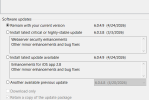
which version of BI is running? I had to go back to 03/09/2026. i got too big for my britches and went against the flow and was taking newer updates. Ran into some glitchy behavior.
 
i just FAFO'd with 6.0.4.9 to see if this older pc runs it without glitchiness.
The Dell precision 3630 with a rtx 3060ti had a freeze and a stammer with the version from 2 releases before 6.0.4.9
 
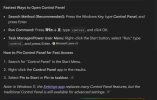
In Win11 25H2, Control Panel is gone.

hmmm, don't see 'High Performance' under settings -> System -> Power ... I do have various energy saver options disabled.
No it's not, but it has been hidden for years. You can type powercfg.cpl into the Run dialog to get to those settings, or Control Panel into the search bar or even File Explorer's address bar to open it. Note that running the High Performance profile is going to put your CPU near maximum voltage 24/7, which could reduce its lifespan and slightly increase power consumption. Dropping Minimum Processor State (under the High Performance profile) from 100% to 99% can help with this (it drops the CPU from idling at max turbo speed/voltage to idling just below its nominal/rated speed). You can observe these parameters in operation using HWiNFO64.