Moved Blue Iris 4 to New Machine, now Archiving Issues

Coolio

Young grasshopper
Sep 22, 2016
37
15
Colorado
I transferred my previous Blue Iris 4 settings to a new and faster Dell Optiplex 2 months ago. I also physically moved my old WD Purple 4TB drive to the new computer. For some reason I no longer have a continuous recordings database of my 5 cameras. It seams to only record 24 hours with random gaps in recording, but I can still see about 3 weeks worth of continuous recordings from my old computer from 2 months ago. Blue Iris is installed on my SSD C drive, and WD Purple 4TB is my D drive.

Any ideas on what would prevent me from having at least 3 weeks worth of continuous recordings on each of 5 cameras?

Thanks!
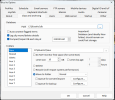
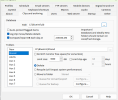
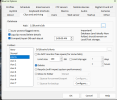
Screenshot 2025-12-30 103548.pngScreenshot 2025-12-30 103640.pngScreenshot 2025-12-30 103715.pngScreenshot 2025-12-30 103851.pngScreenshot 2025-12-30 103948.png
 
Can you post a screen capture of the storage tab from the BI status window, also why move them to the stored folder on the same drive, all you are doing is making your drive work harder, just leave them in new and set the size of new to be what you want for storage!
 
  • Like
Reactions: looney2ns
Can you post a screen capture of the storage tab from the BI status window, also why move them to the stored folder on the same drive, all you are doing is making your drive work harder, just leave them in new and set the size of new to be what you want for storage!
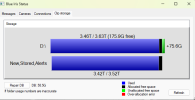
Here you go:
Screenshot 2025-12-30 172107.png
 
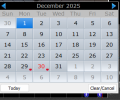
Also, see the gap from 4am to almost 9am where it stopped recording? I also have a much bigger gap from when I moved the 4tb harddrive from the old computer to the new one. I can pull up a continuous stream of recording from Oct. 1st to Oct 18th. Oct. 18th is when I moved to the new computer. Since then I can only get a broken 24 hours, but the 18 days in October are still there on the drive. Thanks!
 
I suspect that there may not be enough free space left on the drive, when a file is being recorded it may result in the file exceeding the space allocated to BI temporarily, this may prevent a new recording file from starting until BI has a chance to manage the disk space, what is the size of the file for each camera, you probably should leave enough space free for each camera to have one file that exceeds the allocated disk space. This is my best guess, I have read reports of others allocating the entire drive to BI and then the drive gets over allocated during the recording process, Reduce the space allocated to BI and if my theory is correct then the problem will be solved, if you no longer have space for all the file that you want to keep then a larger drive may be needed
 
If you hover your mouse over the RED message does it say anything, Is there anything in the log file that may reference the message?

Is this on BI version 4, if so then you are running a very old version of BI
 
I changed the large storage folder to "new" and increased it to 3500gb. I changed the "storage' folder to 1gb and stopped the "new" folder from sending files to it. I also deleted my old 3.5tb "storage" folder and will watch it fill up. That also cleared the RED message.

How do I see what the file size is on each camera?

Thanks!
 
I changed the large storage folder to "new" and increased it to 3500gb. I changed the "storage' folder to 1gb and stopped the "new" folder from sending files to it. I also deleted my old 3.5tb "storage" folder and will watch it fill up. That also cleared the RED message.

How do I see what the file size is on each camera?

Thanks!
I don't know much about Version 4, it is before when I started using BI, but can you not look in the new folder and see the size of each file, they should be listed with the name of the camera as part of the file name, at least that is what happens in BI 5 and BI6, you need to verify that the free space buffer you have on the HD is sufficient for the file management to use, I really have no idea how well BI 4 manages this space as I have never used that version! I still suspect that you may be allocating too much of the HD space , when you look at the property of the HD what does it tell you about the space available, i Presume that you know that a 4TB drive does not actually have 4TB of usable space once it is formatted! In your storage status screen if show that you only have 75GB of freer space available on the drive, which I suspect is not enough and what may be part of your problem, once again I have no experience with version 4! Is there a reason that you are running such an old version?
 
It worked well for a long time. If it ain't broke, don't fix it I guess? I wonder if upgrading to BI6 would solve some problems. Can I upgrade directly from 4 to 6?
 
It worked well for a long time. If it ain't broke, don't fix it I guess? I wonder if upgrading to BI6 would solve some problems. Can I upgrade directly from 4 to 6?
Possibly, Lots of people have upgraded directly from V5 to V6 with no problems, I have read no reports of anyone going directly from V4 to V6, probably due to very few people still running V4
You would have to purchase a maintenance plan or be nice to the developer for all the years you have used the software for an extremely low cost and purchase a new license, which would give you a year worth of free updates, then due to the changes from V4 to V6, I would suggest a clean install and reconfigure!
 
Possibly, Lots of people have upgraded directly from V5 to V6 with no problems, I have read no reports of anyone going directly from V4 to V6, probably due to very few people still running V4
You would have to purchase a maintenance plan or be nice to the developer for all the years you have used the software for an extremely low cost and purchase a new license, which would give you a year worth of free updates, then due to the changes from V4 to V6, I would suggest a clean install and reconfigure!
Thanks!