Newbie: How to download clips from timeline with continuous recording?

meg.jarvis

n3wb
Oct 3, 2025
4
2
London, ON, Canada
Hi all,
I'm a very new Blue Iris user. I bought and set up this system because I use four cameras to record my dog when she uses "buttons" to talk. :) I've chosen to use continuous recording rather than event-based, because sometimes I need more pre- or post-event context. I have a list of timestamps that I want to go in and pull clips for. The cameras all show different angles of the same room. I typically want to pull all four camera angles for every timestamp. Is there a way to set the in and out once and then export all four clips at the same time?
Thanks in advance for any suggestions!
 
Try this...
  1. Select the camera group you want (or an 'ad-hoc' group - see 'About ad-hoc groups' below).
  2. Double-click in the timeline. This should expose the playback controls.
  3. Left-click in the black speed/timestamp box.
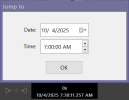
  4. Edit the exact start time you want, then click 'OK'.
    1759596240751.png
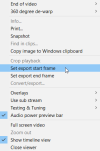
  5. Right-click anywhere (any camera or the black space) and select 'Set export start frame'
    (note that 'Convert/export' is currently grayed out)
    1759597195294.png
  6. Repeat 4-5 for the 'Set export end frame'
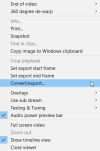
  7. Right-click anywhere and select 'Convert/export'
    (this option should no longer be grayed out)
    1759597264109.png
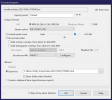
  8. Chose the conversion parameters you want. Click 'OK'
    1759597330748.png

This should output a synced GROUP video for all the cameras in the same frame.

If you want each camera by itself, you'll need to perform the above steps for each camera individually.

~~~~~
About ad-hoc groups:
  • Create ad-hoc group by holding down Shift+Ctrl while clicking the cameras you want, then releasing.
  • Clear an ad-hoc group by clicking Esc twice
 
Last edited:
  • Like
Reactions: mteky2
Try this...
  1. Select the camera group you want (or an 'ad-hoc' group - see 'About ad-hoc groups' below).
  2. Double-click in the timeline. This should expose the playback controls.
  3. Left-click in the black speed/timestamp box.
  4. Edit the exact start time you want, then click 'OK'.
    View attachment 229200
  5. Right-click anywhere (any camera or the black space) and select 'Set export start frame'
    (note that 'Convert/export' is currently grayed out)
    View attachment 229207
  6. Repeat 4-5 for the 'Set export end frame'
  7. Right-click anywhere and select 'Convert/export'
    (this option should no longer be grayed out)
    View attachment 229208
  8. Chose the conversion parameters you want. Click 'OK'
    View attachment 229209

This should output a synced GROUP video for all the cameras in the same frame.

If you want each camera by itself, you'll need to perform the above steps for each camera individually.

~~~~~
About ad-hoc groups:
  • Create ad-hoc group by holding down Shift+Ctrl while clicking the cameras you want, then releasing.
  • Clear an ad-hoc group by clicking Esc twice
Thank you for the detailed answer. I do want separate files for each camera. Do you know if I can export each camera individually from the view with all four cameras or do I have to click to each camera individually? Thanks again for taking the time to help.
 
Thank you for the detailed answer. I do want separate files for each camera. Do you know if I can export each camera individually from the view with all four cameras or do I have to click to each camera individually? Thanks again for taking the time to help.
I think individually, but I'm not at my PC to confirm. If not, the developer (Ken) might add this batch capability if asked - just send an email to support.
 
Last edited:
  • Like
Reactions: meg.jarvis
Try this...
  1. Select the camera group you want (or an 'ad-hoc' group - see 'About ad-hoc groups' below).
  2. Double-click in the timeline. This should expose the playback controls.
  3. Left-click in the black speed/timestamp box.
  4. Edit the exact start time you want, then click 'OK'.
    View attachment 229200
  5. Right-click anywhere (any camera or the black space) and select 'Set export start frame'
    (note that 'Convert/export' is currently grayed out)
    View attachment 229207
  6. Repeat 4-5 for the 'Set export end frame'
  7. Right-click anywhere and select 'Convert/export'
    (this option should no longer be grayed out)
    View attachment 229208
  8. Chose the conversion parameters you want. Click 'OK'
    View attachment 229209

This should output a synced GROUP video for all the cameras in the same frame.

If you want each camera by itself, you'll need to perform the above steps for each camera individually.

~~~~~
About ad-hoc groups:
  • Create ad-hoc group by holding down Shift+Ctrl while clicking the cameras you want, then releasing.
  • Clear an ad-hoc group by clicking Esc twice
Worked for me too
 
  • Like
Reactions: jaydeel