IPV6 troubles

dstinson

Young grasshopper
Sep 17, 2016
36
0
hey guys, I have been using BI for years now and never had a problem with remote access via my phone on the app. Well, I finally replaced my old router and installed a new one that turned on IPv6 by default. Everything works fine minus I can't get my remote access working and hoping someone can tell me I have a setting wrong in my router.

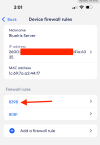
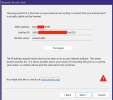
this is what I got. I know from port.tools that the port 8398 is not open. I dont know what else to do. The remote wizard fails at the last step.

thanks
Screenshot 2026-02-16 at 3.02.02 PM.png
 
Ok the screenshots don't really show everything I'd need to know to verify correct setup.

Windows machines typically have many IPv6 addresses and many of them are temporary, e.g. here one day and gone the next. So if possible, use DHCPv6 in the router to reserve and assign a specific address to the BI computer. Make sure the router's firewall rule is configured for that address. And make sure you are using that address to connect. Otherwise you can assign a static IPv6 address to the Blue Iris PC as long as it is within your routed prefix but this is an advanced topic. Best to use DHCP(v6) if possible.

Then ensure these things:
1) The router's firewall rule should ALLOW traffic on that port number (8398) for TCP protocol. UDP is not necessary. And you only need to open one port, not two for Blue Iris's web server.
2) Blue Iris Settings > Webserver
  • web server should be listening with HTTP and/or HTTPS on the same port number you opened in router's firewall. You can listen with both protocols on same port number.
  • Bind exclusively checkbox should NOT be checked
3) In Windows firewall advanced settings, add an inbound rule allowing TCP traffic on port 8398 or whatever port you end up using. Allow it for all network types (public/private/domain). This is normally redundant with the automatically created firewall rule for Blueiris.exe, but has the benefit of still working after Windows has mistakenly changed your network type to public.

Then one way of testing connectivity is to use a web browser, build the URL like this:
http://[2600....41a:6335]:8398/

Fill in the real IPv6 address. Actual square brackets go around the IPv6 address; don't take those out.

I've never used IPv6 in the mobile app so I don't know if it has any quirks there.

 
By the way the exact same IPv6 address or URL should work both INSIDE your LAN and outside from the internet/cellular connection. So if it works on LAN but not through internet then you know the issue is with your router or ISP.
 
cor
By the way the exact same IPv6 address or URL should work both INSIDE your LAN and outside from the internet/cellular connection. So if it works on LAN but not through internet then you know the issue is with your router or ISP.
correct, it does work on LAN but not WAN. thanks for the reply, looking at it now.
 
ok so I can hit the web browser using the method above

"Then one way of testing connectivity is to use a web browser, build the URL like this:
http://[2600....41a:6335]:8398/"

so now is it the app that is holding me back? I can't get that to log in when I turn off wifi.
 
Are you saying the http URL in a web browser works with wifi off? Or does not work?

The Blue Iris mobile app's ipv6 support is a totally unknown factor for me. All I can say is if you did the firewall rules all correctly then it will work in a web browser and then it SHOULD work in the Blue Iris mobile app too.
 
  • Like
Reactions: looney2ns
If you are doing this remote access just for yourself of devices you control, then you should honestly discard the whole IPv6 experiment and sign up for Tailscale free plan. Install Tailscale on the Blue Iris computer and on your phone and other devices you want to remote connect from. In Tailscale's admin console, disable key expiry for all the devices you just added to your tailscale network, otherwise they will randomly stop working later.

Then you can use the IPv4 address you find in Tailscale's admin console to connect Blue Iris and you don't have to expose its web server to the entire internet.

Although being honest using IPv6 to access Blue Iris is already hiding it from most of the internet's bad actors. hah.
 
  • Like
Reactions: looney2ns
Are you saying the http URL in a web browser works with wifi off? Or does not work?

The Blue Iris mobile app's ipv6 support is a totally unknown factor for me. All I can say is if you did the firewall rules all correctly then it will work in a web browser and then it SHOULD work in the Blue Iris mobile app too.
sorry let me clarify, on the BI machine I can enter the IPv6 path in the browser and it works. And yes this is just for my 1 machine to get alerts. I also can tun off the IP v6 in the router if I can't get this working.

thanks for the help.
 
Heh well that is funny. How did you get sidetracked on ipv6 then? You know ipv6 and ipv4 work at the same time.
I guess I was not aware they both can be used simultaneously. I just saw the router had it turned on and saw the long IP address the BI machine had listed.
 
Most routers/firewalls will block all unsolicited outside data from passing through the firewall by default (which is the most secure way to handle outside traffic). Therefore, you have to modify/add rules to specifically allow outside traffic destined for your BI machine to pass through your firewall/router.

With IPv4, you do this by forwarding a port through your firewall which then gets forwarded to the BI machine. With IPv6, you have to put in a WAN firewall rule to allow data going to the BI IPv6 address through the firewall. So instead of passing a port through, you pass the entire IPv6 address (edit - you can and probably should limit the data destined for the BI machine's IPv6 address to a specific port(s), but the firewall rule is based on the IPv6 IP address of the BI machine and not just the port like it is with IPv4). It's obviously setup differently depending on whether your use IPv4 or IPv6, but effectively it is doing the same thing - both ways allow the data destined for the BI machine to go through the firewall and get to the BI machine.

I suspect that you never added a WAN firewall rule to allow data destined for the IPv6 address of the BI machine the ability to pass through the firewall.
 
Last edited:
  • Like
Reactions: alastairstevenson
With IPv6, you have to put in a WAN firewall rule to allow data going to the BI IPv6 address through the firewall. So instead of passing a port through, you pass the entire IPv6 address (edit - you can and probably should limit the data destined for the BI machine's IPv6 address to a specific port(s), but the firewall rule is based on the IPv6 IP address of the BI machine and not just the port like it is with IPv4).
That is untrue. Maybe for some bad router interface it is true. But in general IPv6 firewall rules are specific to port and protocol otherwise it would be silly.

I suspect that you never added a WAN firewall rule to allow data destined for the IPv6 address of the BI machine the ability to pass through the firewall.
The first screenshot he posted was of his router's firewall rules for a machine named BlueIris Server. It didn't show anything but IP address and two port numbers though, so we don't really know what the firewall rules were in detail.
 
That is untrue. Maybe for some bad router interface it is true. But in general IPv6 firewall rules are specific to port and protocol otherwise it would be silly.

I don't know what firewall software you use, but you definitely should add the destination IPv6 address in your WAN firewall rule with OPNsense and pfSense. Those are definitely not considered a "bad router interfaces".

I guess it would be possible to create a WAN firewall rule that passed all traffic on a specific port through the firewall, but that traffic would hit every single device on the local network. By specifying a single IPv6 address in the firewall rule, you limit the traffic coming though the firewall to traffic destined for that specific machine (and optionally to specific port(s) on that machine) only.

Obviously the best way to gain remote access of your local network is to use a VPN or other similar solution (Tailscale, etc). But if you are going to allow any unsolicited traffic through your firewall/router the more you can limit this traffic, the better. Putting specific IP addresses (and even going further by naming specific ports on that IP address) in your WAN firewall rules is certainly the better than allowing more traffic through.
 
Last edited:
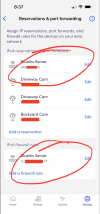
I made a ipv4 rule to reserve the DHCP address and a ipv6 fw rule. Specifically in the mobile app I use the ipv4 address to connect. My confusion was around the ipv4, why give me that if I have a ipv6? I mean if you create ipv6 because we are running out of IPv4's why give me both. But hey above my pay grade. Everything works so I am happy.
 

Attachments

  • Screenshot 2026-02-17 at 8.38.44 AM.png
    Screenshot 2026-02-17 at 8.38.44 AM.png
    1.1 MB · Views: 4
I don't know what firewall software you use, but you definitely should add the destination IPv6 address in your WAN firewall rule with OPNsense and pfSense. Those are definitely not considered a "bad router interfaces".
I use pfSense. I think there was just a miscommunication. I had misunderstood your statement to be saying IPv6 firewall rules could not allow just one port and had to allow all traffic to a host (which obviously is incorrect). My mistake.

I made a ipv4 rule to reserve the DHCP address and a ipv6 fw rule. Specifically in the mobile app I use the ipv4 address to connect. My confusion was around the ipv4, why give me that if I have a ipv6? I mean if you create ipv6 because we are running out of IPv4's why give me both. But hey above my pay grade. Everything works so I am happy.

IPv4 and IPv6 are totally separate addressing systems that coexist on the same network infrastructure, and yeah that can be a mind-bender to get your head around.

Suffice it to say if you only had IPv6 enabled but not IPv4 then a large amount of the internet would stop working for you because a large amount of the internet is still only on IPv4, and will remain so for the foreseeable future.