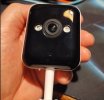
Hi all,
I'm trying to access the web interface of my Jooan A6M-U camera and I'm stuck on the login page after exhausting all the usual options. Hoping someone here has dealt with this firmware before.
What I know so far:
What I'm looking for:
Any known default or recovery password for this firmware, or guidance on UART access to reset/dump the credentials at the hardware level. I have basic soldering ability and am comfortable with serial console work if someone can point me in the right direction for this chipset.
Thanks in advance!
I'm trying to access the web interface of my Jooan A6M-U camera and I'm stuck on the login page after exhausting all the usual options. Hoping someone here has dealt with this firmware before.
What I know so far:
- Web interface at port 80 shows a login page titled "ipcamera"
- Port 443 also open, all other ports (22, 23, 554, 8080, etc.) closed
- Auth endpoint is GET /goform/getVideoSettings?userid=<user>&userkey=<md5_of_password>
- Confirmed username is "admin" (wrong username returns infinite load, wrong password returns {"result":"error_passwd"})
- Tried passwords: blank, admin, 123456, 111111, 12345678, jooan — all return error_passwd
- Hardware reset performed (confirmed two beep self-test completed)
- Page source references qacloud.com.cn and uses jquery.md5.js for password hashing
- Unauthenticated CGI endpoints (hi3510/param.cgi?cmd=getuser etc.) all return 500
- Telnet (port 23) is closed
What I'm looking for:
Any known default or recovery password for this firmware, or guidance on UART access to reset/dump the credentials at the hardware level. I have basic soldering ability and am comfortable with serial console work if someone can point me in the right direction for this chipset.
Thanks in advance!