Blue Iris UI3

what about when playing in Timeline View when I'm "current" e.g. when Seek Position == LIVE?

View attachment 238397

Speaking of Seek Position == LIVE, is there a way to jump to this in the Timeline tab? I know F1 jumps to the Live tab, but I want to jump to "now" in Timeline tab.

Right now I get current by toggling to the Live tab and back to Timeline tab, but that seems inelegant.

Would Up Arrow, if there are no clips newer than the current playhead position, be a reasonable choice for this?
 
Speaking of Seek Position == LIVE, is there a way to jump to this in the Timeline tab? I know F1 jumps to the Live tab, but I want to jump to "now" in Timeline tab.

Right now I get current by toggling to the Live tab and back to Timeline tab, but that seems inelegant.

Would Up Arrow, if there are no clips newer than the current playhead position, be a reasonable choice for this?
There is no hotkey to go live if that is what you are asking. But this button on the right of the timeline does it. 1773078953181.png

That button is green if you're already doing live playback.
 
There is no hotkey to go live if that is what you are asking. But this button on the right of the timeline does it. View attachment 239576

That button is green if you're already doing live playback.
I never knew!

1773079525695.png

Now I know.

What do you think of my idea for Up Arrow if there are no newer clips?
 
I never knew!

View attachment 239577

Now I know.

What do you think of my idea for Up Arrow if there are no newer clips?

It is not easy to implement the hotkey that way, because the current behavior is for UI3 to tell Blue Iris to jump to the next event, and UI3 doesn't know what timestamp that is, or if there even is a next one.
 
  • Like
Reactions: TheWaterbug
It is not easy to implement the hotkey that way, because the current behavior is for UI3 to tell Blue Iris to jump to the next event, and UI3 doesn't know what timestamp that is, or if there even is a next one.
Ah, so it would be a good idea, if it were possible ;)
 
It is not easy to implement the hotkey that way, because the current behavior is for UI3 to tell Blue Iris to jump to the next event, and UI3 doesn't know what timestamp that is, or if there even is a next one.
And now this is triggering deja vu with me, as if we'd had this conversation before!
 
  • Haha
Reactions: bp2008
Is it possible to add a button when long pressing a PTZ preset to just "Save Thumbnail" without saving over the preset?
 
Is it possible to add a button when long pressing a PTZ preset to just "Save Thumbnail" without saving over the preset?
No :(

You can only do that from the local console, in the camera settings > PTZ > Edit presets. Select a preset there and click the little photograph button and BI will capture a new thumbnail.

1774734696114.png
 
  • Like
Reactions: looney2ns
No :(

You can only do that from the local console, in the camera settings > PTZ > Edit presets. Select a preset there and click the little photograph button and BI will capture a new thumbnail.

View attachment 240861
Darn, okay. Maybe I'll get around to emailing BI support to add an API endpoint to make it possible. Thumbnails sometimes randomly disappear so would be nice to have a quick way to save new ones.

Another Q..
Is there a way to remove dead/empty space between cameras and stack them tightly instead of evenly spacing them out? Perhaps through css (for a specific group)? The thought being to set up a group with a few cams that has a big empty space at the lower right that I can overlay other stuff on.
 
Darn, okay. Maybe I'll get around to emailing BI support to add an API endpoint to make it possible. Thumbnails sometimes randomly disappear so would be nice to have a quick way to save new ones.

Another Q..
Is there a way to remove dead/empty space between cameras and stack them tightly instead of evenly spacing them out? Perhaps through css (for a specific group)? The thought being to set up a group with a few cams that has a big empty space at the lower right that I can overlay other stuff on.
A few things:
  1. In UI3, right click the group video, choose Group Settings. There, you can disable Fit to Viewport and lock in a specific aspect ratio. Tune to your taste.
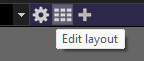
  2. In Blue Iris local console, click the Edit Layout button in the top bar next to the group list dropdown.
    1774984334672.png
    Then right click in the camera area to edit the layout settings. Some of the settings in the context menu apply to the camera you right-clicked; some apply to the layout as a whole.
  3. In Blue Iris you can add a new camera and in the Video tab choose Device type > Screen capture > Blackness. Then type the resolution you want in the Size box below. You can add text or image overlays to this or just use it to inject some black space into your layout. You should also specify a frame rate in the "Max. rate" box. I use 2 FPS for one of mine that displays basic date/time and weather data.
    1774984746076.png
 
A few things:
  1. In UI3, right click the group video, choose Group Settings. There, you can disable Fit to Viewport and lock in a specific aspect ratio. Tune to your taste.
Oh, hallelujah!!! I wish I'd known about this for the last few years!
 
A few things:
  1. In UI3, right click the group video, choose Group Settings. There, you can disable Fit to Viewport and lock in a specific aspect ratio. Tune to your taste.
  2. In Blue Iris local console, click the Edit Layout button in the top bar next to the group list dropdown.
    View attachment 241007
    Then right click in the camera area to edit the layout settings. Some of the settings in the context menu apply to the camera you right-clicked; some apply to the layout as a whole.
  3. In Blue Iris you can add a new camera and in the Video tab choose Device type > Screen capture > Blackness. Then type the resolution you want in the Size box below. You can add text or image overlays to this or just use it to inject some black space into your layout. You should also specify a frame rate in the "Max. rate" box. I use 2 FPS for one of mine that displays basic date/time and weather data.
    View attachment 241009
I think option 3 could be the ticket. simple, but didnt think of that. I'll just tune the size of the black area to push everything out. thanks