

No I took the other router out. I adjusted the cables like you have said here with the switch to the router via the lan port and not the wan port is what I read was correct, and then my wireless cameras wouldn't connect. So I had to put everything back the original way I had it for now until I get it figured out. Also the camera is only about three months old. I have wondered if it has gone bad also because it just drops out for no reason and then later on it just appears again. I have checked it power supply and it is working fine. I can understand the wireless ones dropping off once in a while but you would think being wired it would not.Sounds like you have two cables from the switch to the router is that correct, if true then you have two routes for the camera to use to go to the same place. You should have the camera connected to the switch, the computer connect to the switch and the switch connect to the router, three cables only, no duplicates cables.
Do you also have two routers in the setup now?
Is it possible that the camera is failing?
Camera Freezes
- Thread starter Woody70
- Start date
You are using an out of date browser. It may not display this or other websites correctly.
You should upgrade or use an alternative browser.
You should upgrade or use an alternative browser.
Just to confirm, your router is connected to either a modem or is connected to the wire your external internet come in on, your router is also the wireless signal provider, you should have the switch plugged into one of the router lan ports and the camera plugged into the switch so that the wired camera does not have to go through the router to get to the computer, you should also have the computer connected to the switch. The wireless cameras should be able to connect to the computer via the switch that is plugged into the router as they will all be on the same subnet. With things configured this way can you confirm that you can bring up the routers web management page, that will confirm that the computer is seeing your router, if this works I can think of no reason whey you wireless cameras will not be accessible also. Is there any chance that you have the wireless cameras on a VLAN or the guest network?
I have connected all cables as you said. All cameras are working for now. I had them connected like this before and the wired one dropped out for some reason after the first night. After messing with it for some time I gave up and connected it back to the router and it started working again. So now I have connected them to the switch as you described so I will see what happens after today. As far as the web management I have never been able to bring up any of my cameras there. Maybe because my router is figured as a repeater from the main router, I'm not sure why, ODM doesn't even find two of them for some reason. And will only bring up live video one one of them but the advanced port scanner finds all of them. I makes no sense to me.
You say one of your routers is set up as a repeater, do you mean it is using wireless to move all the network traffic to the main router or is it connected to the main router via a cable (acting as an access point)! it might be good if you could perhaps explain the full network configuration as I am only getting bits an pieces at a time and it is important that I know the full configuration if I am going to be able to give you good advice! perhaps a sketch of the setup that you could upload might help? Is your network all on the same subnet or is it two different subnets one for each router

Yes mine is a different subnet. It is connected to the main router which is connected to the modem, and my router is connected to that router via ethernet cable. I will try and draw up a small sketch of what I have and post it. (Keep in mind I am no artist.)
I will wait to see the diagram, fine artistry is not required, I am curious why you have two subnets, if the cameras are on different subnets and you are using the routers to route the traffic to the other subnet, I would suspect this is part of the problem, hopefully this can be sorted out for you.Yes mine is a different subnet. It is connected to the main router which is connected to the modem, and my router is connected to that router via ethernet cable. I will try and draw up a small sketch of what I have and post it. (Keep in mind I am no artist.)
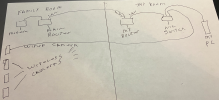
That looks good, if the "My Router" is setup as an access point then the entire setup should be on just one subnet, either way the wireless cameras and the wired camera should all be connecting on the same subnet (ip address range), I am not seeing anything obvious that might be causing the wired camera to lose connection to the network, is the wireless configured on both routers, just wondering which router the wireless cameras are connecting to?The router is configured to be a repeater or whatever the name they call it and it is only like that for internet. All cameras are connected to my router and have nothing to do with the main router. Here is the best I could do with a diagram.
All cameras are connected to my router, wireless and wired. Except the wired one now connects to the switch. The only thing the main router does is provide internet. So far after connecting everything as you suggested before, and the way the diagram shows, the wired camera has been working fine. Hopefully that did solve my problem. The idea that wittaj said about the switch was great, I never knew about a switch like that and I think that did the trick. I will leave things like this for a few days and see if all stays good. Also the routers being on two different subnets, could that be the reason I can't see them on the web?That looks good, if the "My Router" is setup as an access point then the entire setup should be on just one subnet, either way the wireless cameras and the wired camera should all be connecting on the same subnet (ip address range), I am not seeing anything obvious that might be causing the wired camera to lose connection to the network, is the wireless configured on both routers, just wondering which router the wireless cameras are connecting to?
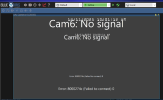
So just so you know I only run B.I. at night time from about 6pm to 7AM. And now after about four hours after shutting it down I am back to the same thing. And nothing has been changed as far as the cables or any settings.. Here is a screenshot of it.
Attachments

As I mentioned back in post #10, "........the switch portion of most routers is not meant to handle the constant data (video) stream of network cams."All cameras are connected to my router, wireless and wired. Except the wired one now connects to the switch.
. Also the routers being on two different subnets, could that be the reason I can't see them on the web?
Probably...
Why do you even have 2 routers? The LAN of the "Family Room" router being connected to the WAN of the router in "My Room" (?) not only creates a new and different subnet but also produces a double NAT which can slow donw Internet speed somewhat.
FWIW, any wireless router can be configured to function as a wireless access point only and not perform the routing function.

Do the cameras not have static IP's assigned?So just so you know I only run B.I. at night time from about 6pm to 7AM. And now after about four hours after shutting it down I am back to the same thing. And nothing has been changed as far as the cables or any settings.. Here is a screenshot of it.
Have you checked that the IP address in BI is still correct, there is the possibility that the IP address is inadvertently getting changed by BI, also check to see if you can "ping" the camera at the correct IP address. By the way what is the make and model of the wired camera that is giving you problems!So just so you know I only run B.I. at night time from about 6pm to 7AM. And now after about four hours after shutting it down I am back to the same thing. And nothing has been changed as far as the cables or any settings.. Here is a screenshot of it.
Tony, I think that perhaps the second router is configured as an access point! I think that we are possibly encountering a bit of terminology confusion!As I mentioned back in post #10, "........the switch portion of most routers is not meant to handle the constant data (video) stream of network cams."
Probably...
Why do you even have 2 routers? The LAN of the "Family Room" router being connected to the WAN of the router in "My Room" (?) not only creates a new and different subnet but also produces a double NAT which can slow donw Internet speed somewhat.
FWIW, any wireless router can be configured to function as a wireless access point only and not perform the routing function.
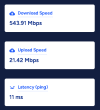
I have two routers so my cameras can connect to it and not the main router and to have internet in my room. It is configured to get DHCP from the main router. My internet speed is still pretty good.As I mentioned back in post #10, "........the switch portion of most routers is not meant to handle the constant data (video) stream of network cams."
Probably...
Why do you even have 2 routers? The LAN of the "Family Room" router being connected to the WAN of the router in "My Room" (?) not only creates a new and different subnet but also produces a double NAT which can slow donw Internet speed somewhat.
FWIW, any wireless router can be configured to function as a wireless access point only and not perform the routing function.
Attachments
The IP address is still the same in B.I. All cameras have a static IP. The camera is a Zosi C296 5mp camera. Also now after about 5 or so hours it suddenly shows back up without me doing anything. I can ping it now that it is back up. It seems as though it works great all night but after shutting down B.I. it disappears for some time and then reappears hours later for no reason.Have you checked that the IP address in BI is still correct, there is the possibility that the IP address is inadvertently getting changed by BI, also check to see if you can "ping" the camera at the correct IP address. By the way what is the make and model of the wired camera that is giving you problems!
I wonder if the camera is going into some sort of power saving mode when it is not being accessed? Are you able to access the web management page for this camera? if not how do you configure the camera settings?The IP address is still the same in B.I. All cameras have a static IP. The camera is a Zosi C296 5mp camera. Also now after about 5 or so hours it suddenly shows back up without me doing anything. I can ping it now that it is back up. It seems as though it works great all night but after shutting down B.I. it disappears for some time and then reappears hours later for no reason.
I do it through an app on my phone and there is nothing in there about power saving mode or anything even similar to thatI wonder if the camera is going into some sort of power saving mode when it is not being accessed? Are you able to access the web management page for this camera? if not how do you configure the camera settings?
Take a look in the Camera setting in BI, on the video tab, click on "Configure" and take a look at the following settings "Send RTSP keep-alives" if it is not set then click it put a check mark in the box and the setting for "Skip initial MAC, HTTP, DNS reachability tests, if it is not set then check that one also and see if either of these make any difference. You might also want to look at the settings on the "Watchdog" tab, the help button will tell you what the setting do, and there might be something there that might also help!I do it through an app on my phone and there is nothing in there about power saving mode or anything even similar to that
Thank you, they are both checked. And here is my watchdog settings I am not familiar with these settings at all . Also when the camera stops responding it is not just with B.I. I use advanced port scanner to find my IPs and it shows up in there as not connected also when it does this.Take a look in the Camera setting in BI, on the video tab, click on "Configure" and take a look at the following settings "Send RTSP keep-alives" if it is not set then click it put a check mark in the box and the setting for "Skip initial MAC, HTTP, DNS reachability tests, if it is not set then check that one also and see if either of these make any difference. You might also want to look at the settings on the "Watchdog" tab, the help button will tell you what the setting do, and there might be something there that might also help!
Attachments

Last edited: