

Nice. I'll make the change.Changing two lines as follows:
913 - :
if ($cur_ary_cnt -gt 0 -and $Days -ne 0) {
2722:
if ($timestamp_output_csv_files_flg -and $archive_lifetime_days -ne 0) {
allows the option$archive_lifetime_daysto be set to negative numbers. ANY negative number will prune ALL the CSV files. Other values behave the same as before.
I don't need history of usage, this cleans up the CSV files created for the report.
Blue Iris Clips and Files - Disk Usage Utility
- Thread starter jaydeel
- Start date
You are using an out of date browser. It may not display this or other websites correctly.
You should upgrade or use an alternative browser.
You should upgrade or use an alternative browser.
Script updated to V7.1. See post #1 to download the file.
Please note the BREAKING CHANGE
see changelog item 1 below
Once again, you will need to edit the user settings file.
Changelog:
Please note the BREAKING CHANGE
see changelog item 1 below
Once again, you will need to edit the user settings file.
Changelog:
- BREAKING CHANGE: additional user-setting; change to a user setting
- NEW: added user setting
$experienced_user_flgto hide output intended for first-time users - CHANGE: user setting
$archive_lifetime_daysnow supports negative integer (prunes all archive files)
Script updated to V8. See post #1 to download the file.
Here are some reasons why may want to use this new version:
and the revised usage guide via the
NOTE: If you are already using V7.1, then you can continue to use your existing user-settings file.
Changelog:
Here are some reasons why may want to use this new version:
- Monitoring the file count in each Blue Iris storage folder may help to avoid sluggish file management (possibly starting at ~10,000 files; see this ChatGPT query). This includes impacting the performance of this Powershell script!
- If you routinely protect clips/alerts, then you should pay attention to the ratio of READ-ONLY files and increase the folder storage allocation accordingly
- Windows File Explorer displays file timestamps in the CURRENT local timezone; therefore the time shown for old files may be off by an hour from their actual created time. V8 shows the file's actual creation timezone of in the Oldest column (e.g., PST/PDT)
- New arguments that enable the on-demand overriding of default user-settings (
-NoTimestampand-NoPruning). I use the -NoTimestamp argument when executing the script the console, and use timestamping only when running the script from Task Scheduler. - A new argument that enables the easy purging of all archived output tables (
-ClearArchive)
and the revised usage guide via the
-Help argumentNOTE: If you are already using V7.1, then you can continue to use your existing user-settings file.
Changelog:
- NEW: added stats for the quantity of READ-ONLY (protected) files in each folder
- NEW: added timezone designator to the oldest and newest date columns
- NEW: added argument -NoTimestamp to override the time stamping of the output CSV files
- NEW: added argument -NoPruning to disable the pruning of old CSV files
- NEW: added argument -ClearArchive to delete archived (old) CSV files on demand
- NEW: script now checks if the commandline contains unsupported argument(s)
- CHANGED: now showing file CreationTime (previously LastWriteTime) in output table's 'Oldest' & 'Newest' date columns
- CHANGED: now showing time as HH:MM instead of HH:MM:SS in output table's 'Oldest' & 'Newest' date columns
- CHANGED: eliminated redundant TOTAL row from output tables if the folder contains only one item
- CHANGED: eliminated 'Oldest' & 'Newest' entries from the output table's TOTAL row
- CHANGED: function PurgeOldFiles() now gets existing files ordered oldest to newest
Last edited:
Added another reason to post #43...
- Monitoring the file count in each Blue Iris storage folder may help to avoid sluggish file management (possibly starting at ~10,000 files; see this ChatGPT query).
I've been sitting on an update for awhile now. I'll think about this. I think this would require extraction the duration from from the BVR file, dividing it into the file size, then averaging this value for all BVRs for the camera. Does this sound about right?I was playing with some camera bitrate settings and just thought of a feature request. How hard would it be to add a column to the BVR section of average GB per day?
I'm not sure how useful this would be UNLESS I added a script filter argument to summarize only those files of a certain age, say 24 hours old or less. What do you think?
I was thinking more basic math, but to be fair I don't really know how accurate it would be.I've been sitting on an update for awhile now. I'll think about this. I think this would require extraction the duration from from the BVR file, dividing it into the file size, then averaging this value for all BVRs for the camera. Does this sound about right?
I'm not sure how useful this would be UNLESS I added a script filter argument to summarize only those files of a certain age, say 24 hours old or less. What do you think?
We already know the number of days for each cam, and total size per cam. Would dividing size by days get us pretty close?
We can try it. I'll make it optional.I was thinking more basic math, but to be fair I don't really know how accurate it would be.
We already know the number of days for each cam, and total size per cam. Would dividing size by days get us pretty close?

Script updated to V9. see post #1 to download the zip file.
Please note the BREAKING CHANGE
see changelog item 1 below
This new version may helpful if you want:
1. To track only one (or a just few) Blue Iris Storage folders ... see changelog item 9 below
2. To track average disk usage per day for each camera/folder/system ... see changelog items 4-8 below
3. To future proof folder analyses for new file types introduced by Blue Iris ... see changelog item 14 below
4. A snappier script ... see changelog items 16,17 below
5. To skip automatically saving CSV files ... see changelog item 10 below
6. To have the ability to globally batch kill my Powershell scripts running the background ... see changelog item 13 below
Changelog:
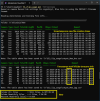
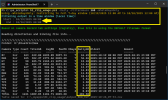
The following screenshot shows the new Daily Usage column, and folder calculations.
KEY POINT: Comparison of the daily byte averages are probably meaningful only for contiguous days where the cameras are recorded continuously.
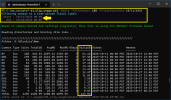
See the next group of screenshots for new arguments you can use to ensure meaningful comparisons.

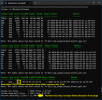
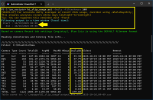
The following screenshots illustrate new filter options when using argument
Examples of using new arguments
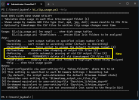
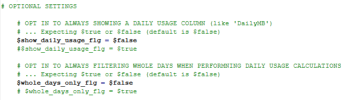
The following screenshot shows the new USER SETTINGS.
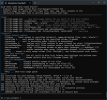
The following screenshot shows the new -Help screen.
Please note the BREAKING CHANGE
see changelog item 1 below
This new version may helpful if you want:
1. To track only one (or a just few) Blue Iris Storage folders ... see changelog item 9 below
2. To track average disk usage per day for each camera/folder/system ... see changelog items 4-8 below
3. To future proof folder analyses for new file types introduced by Blue Iris ... see changelog item 14 below
4. A snappier script ... see changelog items 16,17 below
5. To skip automatically saving CSV files ... see changelog item 10 below
6. To have the ability to globally batch kill my Powershell scripts running the background ... see changelog item 13 below
Changelog:
- BREAKING CHANGE: added new user-settings; must update user-settings file before using this script
- FIXED: eliminated error when camera does not have a 'continuous' reg key in reg path HKLM\SOFTWARE\Perspective Software\Blue Iris\Cameras\{camname}\Clips\{profile#}
- ADDED: MIT license notification
- ADDED: argument
-Dailyto insert a daily usage column like 'DailyGB' (thanks @scoob8000) - ADDED: user-setting
$show_daily_usage_flgto make -Daily the default action - ADDED: arguments
-FilterHours&-FilterStartDate&-Forceto filter a time "window" - ADDED: argument
-WholeDaysOnlyto exclude the current partial day - ADDED: user-setting
$whole_days_only_flgto make-WholeDaysOnlythe default action - ADDED: argument
-Foldersto limit output to specified folders, like-Folders 'new','alerts' - ADDED: argument
-NoCsvto limit output to console only - ADDED: argument
-SaveTranscriptto enable transcribing of script (useful for debugging) - ADDED: argument
-ResetJsonId(useful for when script stops working as expected) - ADDED: support for global kill switch (file C:\BlueIris\www\PS_KILL_SWITCH.txt exist); see companion scripts 'ps_kill_scripts_on.ps1|cmd' and 'ps_kill_scripts_off.ps1|cmd'
- IMPROVED: the grouped by file extension tables for each folder are now dynamically determined (no longer hard-coded); this avoids situations like in v5.9.9.44 where Blue Iris, for the first time, added *.dat files to the New folder
- IMPROVED: script now tests for unexpected files in all Blue Iris storage folders (other than: *.bvr, *.dat, *.jpg, or *.mp4)
- IMPROVED: script now executes 2x faster (code refactored and uses a unified per-file object model and pre-grouped files by extension once per folder)
- IMPROVED: script now displays progress bars when parsing the largest folders (5000 or more files)
- IMPROVED: script now detects and warns if using unsupported arguments
- IMPROVED: user passwords are no longer required in the user-settings-file (unless using the encryption option)
The following screenshot shows the new Daily Usage column, and folder calculations.
KEY POINT: Comparison of the daily byte averages are probably meaningful only for contiguous days where the cameras are recorded continuously.
See the next group of screenshots for new arguments you can use to ensure meaningful comparisons.
The following screenshots illustrate new filter options when using argument
-DailyExamples of using new arguments
-FilterHours, -FilterStartDate, and -WholeDays that can be used to ensure meaningful comparisons The following screenshot shows the new USER SETTINGS.
The following screenshot shows the new -Help screen.
Last edited: