

I routinely remote to my Blue Iris server by using an iPad (with Apple Pencil) via the Windows App (Remote Desktop).
To access Blue Iris desktop UI context menus, I can usually simulate a mouse right-click by:
The workaround I settled on is a tiny AutoHotkey v2 script that converts Shift+F10 into a genuine mouse right-click. The script is launched at logon via Task Scheduler with elevated privileges (matching Blue Iris), so no UAC prompts appear.
After installing it, I can open the Layout Editor context menu entirely from the iPad INSTEAD of walking over to the server.
If anyone is interested, I've attached the AutoHotkey script and Task Scheduler XML export.
Instructions for manual testing:
To access Blue Iris desktop UI context menus, I can usually simulate a mouse right-click by:
- Touching the desired location with the Pencil (or finger)
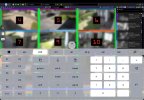
- Touch typing Shift+F10 using the Windows App's on-screen keyboard (see screenshot 1)
The workaround I settled on is a tiny AutoHotkey v2 script that converts Shift+F10 into a genuine mouse right-click. The script is launched at logon via Task Scheduler with elevated privileges (matching Blue Iris), so no UAC prompts appear.
After installing it, I can open the Layout Editor context menu entirely from the iPad INSTEAD of walking over to the server.
If anyone is interested, I've attached the AutoHotkey script and Task Scheduler XML export.
Instructions for manual testing:
- Install AutoHotkey v2 (AutoHotkey). IMPORTANT: you must install version 2.0+.
- Open the attached ZIP file in Windows File Explorer (it contains 3 files).
- Create folder C:\AutoHotkey.
- Copy zipped files 'BI_RightClick_Helper.ahk' and 'BI_RightClick_Helper_2.ahk' into it.
- Select file 'BI_RightClick_Helper_2.ahk', hit Ctrl-C, then right-click on your desktop and save it as a shortcut there.
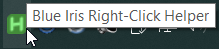
- Double-click the shortcut. You should see a green H icon in the system tray. It will show a tooltip when you mouse over it (see screenshot 2).
- Test the script: click once on the desktop, then type shift-F10. You should hear a beep followed immediately by a right-click context menu.
- To close the script anytime, just right-click on the tray icon and select Exit.
- Copy zipped file 'AutoHotkey Shift-F10.xml' to your desktop.
- Open Windows Task Scheduler.
- Select a library subfolder (I use Task Scheduler Library > My Blue Iris).
- Import 'AutoHotkey Shift-F10.xml'.
- Log off/on.
IMPORTANT: : If you change where the AutoHotkey AHK script is stored, edit the task Action accordingly after importing.
IMPORTANT: The AutoHotkey script must run elevated (Run with highest privileges). Otherwise it cannot intercept Shift+F10 while Blue Iris is running as Administrator. This is the default condition in the provided XML file.
Attachments
Last edited:
