RTSP steam not working in BI but works fine in VLC and Home Assistant.

iwanttosee

Getting comfortable
Dec 27, 2020
417
405
US
I bought a few NIB AXIS Companion Dome mini LE cameras for cheap. They are discontinued and with no web interface, but it does have a RTSP steam by using

rtsp:/root:[email protected]/axis-media/media.amp?videocodec=h264&Axis-Orig-Sw=true

VLC feed works both in desktop and in BI server


View attachment vlc.mp4


View attachment Recording 2025-06-01 035205.mp4


Works in Home Assistant too


View attachment home assisant.mp4

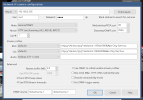
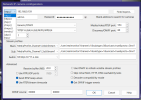
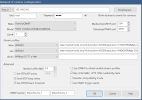
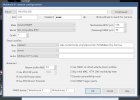
Here is a screen I use to setup in BlueIris
bi_setup.JPG

I get a snapshot if I'm lucky, then it's just disconnect. (video of 40 seconds long of snapshot and then just disconnect)


View attachment bi.mp4

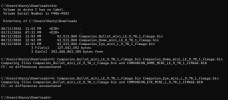
camera_status.JPG


Any idea?
 
Instead of the "VLC-compatible RTSP" for "model" have you tried the standard "*RTSP H.264/H.265/MJPG/MPEG4" with the path "axis-media/media.amp?videocodec=h264" or "axis-media/media.amp?" ?


A BUNCH more to try here. :cool:
 
I have a few ideas too if TonyR's suggestions don't fix it.

1. Try "Decoder compatibility mode" checkbox.
2. If these cameras are ONVIF compatible, use ONVIF Device Manager to reconfigure their encoding settings.
3. You could try running MediaMTX on the Blue Iris machine to proxy the video streams. This may help if the problem is some incompatibility in the RTSP protocol. I use MediaMTX for a number of cameras at home when I have more than one device streaming from them, to prevent putting additional load on the camera.

MediaMTX is pretty simple to configure. Open the included configuration file mediamtx.yml, scroll to the bottom, and define your cameras in it like this:

Code:
###############################################
# Path settings

# Settings in "paths" are applied to specific paths, and the map key
# is the name of the path.
# Any setting in "pathDefaults" can be overridden here.
# It's possible to use regular expressions by using a tilde as prefix,
# for example "~^(test1|test2)$" will match both "test1" and "test2",
# for example "~^prefix" will match all paths that start with "prefix".
paths:
  cam1:
    source: rtsp:/CamUser:[email protected]:554/cam/realmonitor?channel=1&subtype=2
    sourceOnDemand: yes
  cam2:
    source: rtsp:/CamUser:[email protected]:554/Streaming/Channels/102
    sourceOnDemand: yes

  # Settings under path "all_others" are applied to all paths that
  # do not match another entry.
  all_others:

I'm pretty sure you don't even need to restart MediaMTX when making settings changes. It will see the settings file changed and reload it instantly.

Then in Blue Iris, simply point it at 127.0.0.1 for the IP, remove the user name and password from Blue Iris's credential inputs, and use paths like /cam1 or /cam2 for the main stream.
 
So not RTSP after all....as long as it suits your need then great!:cool:
 
So not RTSP after all....as long as it suits your need then great!:cool:

The original issue isn't resolved. The RTSP H.264/H.265 works in VLC and HA but doesn't work in BI.
Luckily, the camera provides a HTTP MJPEG stream as well which works in BI.
 
  • Like
Reactions: TonyR
Here is what I found.

Bullet Mini LE, Dome Mini LE, and Eye Mini LE all uses the same firmware.

image.png

These Companion cameras don't have a web interface, so you'd have to use AXIS Companion software to downgrade the firmware.

Official firmware can be found here.
Download firmware 8.50.1 and 7.45.1 of Eye Mini LE.

Using the AXIS Companion, downgrade the firmware to 8.50.1, then download one more time to 7.45.1. Then in AXIS Companion, factory default the camera.

Stock user is root and password is pass.
RTSP will now work if you use below links in BlueIris.

I can't post the entire rtsp code without the board changing it.

/axis-media/media.amp?videocodec=h264&Axis-Orig-Sw=true

1781866727708.png


1781866757741.png
 
Last edited:
  • Like
Reactions: Arjun and bp2008
Here is what I found.

Bullet Mini LE, Dome Mini LE, and Eye Mini LE all uses the same firmware.

View attachment 241756

These Companion cameras don't have a web interface, so you'd have to use AXIS Companion software to downgrade the firmware.

Official firmware can be found here.
Download firmware 8.50.1 and 7.45.1 of Eye Mini LE.

Using the AXIS Companion, downgrade the firmware to 8.50.1, then download one more time to 7.45.1. Then in AXIS Companion, factory default the camera.

Stock user is root and password is pass.
RTSP will now work if you use below links in BlueIris.

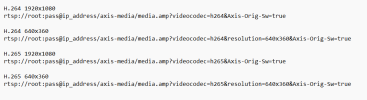
H.264 1920x1080
Code:
rtsp:/root:pass@ip_address/axis-media/media.amp?videocodec=h264&Axis-Orig-Sw=true


H.265 1920x1080
Code:
rtsp:/root:pass@ip_address/axis-media/media.amp?videocodec=h265&Axis-Orig-Sw=true


H.264 640x360
Code:
rtsp:/root:pass@ip_address/axis-media/media.amp?videocodec=h264&resolution=640x360&Axis-Orig-Sw=true


H.265 640x360
Code:
rtsp:/root:pass@ip_address/axis-media/media.amp?videocodec=h265&resolution=640x360&Axis-Orig-Sw=true
Doesn't work on my end - still shows as No Signal on Blue Iris
 
Here is what I found.

Bullet Mini LE, Dome Mini LE, and Eye Mini LE all uses the same firmware.

View attachment 241756

These Companion cameras don't have a web interface, so you'd have to use AXIS Companion software to downgrade the firmware.

Official firmware can be found here.
Download firmware 8.50.1 and 7.45.1 of Eye Mini LE.

Using the AXIS Companion, downgrade the firmware to 8.50.1, then download one more time to 7.45.1. Then in AXIS Companion, factory default the camera.

Stock user is root and password is pass.
RTSP will now work if you use below links in BlueIris.

H.264 1920x1080
Code:
rtsp:/root:pass@ip_address/axis-media/media.amp?videocodec=h264&Axis-Orig-Sw=true


H.265 1920x1080
Code:
rtsp:/root:pass@ip_address/axis-media/media.amp?videocodec=h265&Axis-Orig-Sw=true


H.264 640x360
Code:
rtsp:/root:pass@ip_address/axis-media/media.amp?videocodec=h264&resolution=640x360&Axis-Orig-Sw=true


H.265 640x360
Code:
rtsp:/root:pass@ip_address/axis-media/media.amp?videocodec=h265&resolution=640x360&Axis-Orig-Sw=true
How in the world do you even set RTSP links in Blue Iris in the above fashion?
 
I don't know if this is any help, but
As I recall there was a time i needed to select RSTP:// rather than the default HTTP://
To bring a DVR stream ( analog cams) into BI.
1781852301250.png
 
What firmware is the camera on now? RTSP only works on firmware 7.45.1

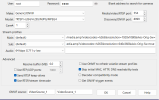
Post your the configuration screenshot.

View attachment 245198
Firmware 7.45.1 - Video only works for about 40 seconds before disconnecting
I tried using your screenshot for reference, but now I get RTSP 503 Service Unavailable
I even removed the camera from the Companion app so that the Companion app password would not mirror onto the camera itself. I can't set the password to be "pass" on companion itself, but when the camera is factory reset through the app and is removed from Companion, the password is restored to "pass"
I know its not an authentication issue

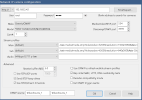
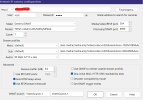
But here is my screenshot -
1781867215961.png 1781867238824.png

I have http:// selected on the upper left corner of Network IP Camera configuration in that BI window
 
Last edited:
  • Like
Reactions: Flintstone61
I restarted the camera, and the stream seems to be working now. I shall keep you posted. Thank you again :)
 
  • Like
Reactions: Flintstone61
The only part that is unfortunate in these cameras is that there is no way to set specific configuration settings such as fps in the camera itself, unless you set a password and add it to the Companion app.

Have you tried setting your own password instead of using the default password to access the camera settings? Or will that break the configuration in Blue Iris and force the user to factory reset the camera again?
 
In case anyone is ever interested in these Axis cameras, its a great price 10 cameras for $30 shipped
These settings work thanks to @iwanttosee
Make sure firmware is 7.45.1 as @iwanttosee mentioned
All of these cameras ship with 7.45.1, new and sealed out of the box - therefore, no need to even add it to the Companion App during initial configuration
If you want to set the IP, you can AXIS IP Utility

If you use the Axis Companion App, then you are forced into setting a custom password - I don't know if this will break the configuration in Blue Iris
The Companion App does not allow you set the password to be the same as the default password "pass"
You can only modify settings for the camera within the Axis Companion App and the the settings are very limited - don't expect to set anything similar to Dahua cameras. The only settings you have access to through the Companion app is resolution and frames per second and a few more basic settings but nothing advanced

The Axis Companion App should only be used to downgrade firmware and "factory reset" - after that, besides this, there is no other tangible benefit to using the app.
There is no dedicated web user interface for the camera itself
If you have to assign the camera to a dedicated VLAN, you will need to configure a custom IP within that specific VLAN IP address range

These cameras are genuine Axis cameras, a respectable brand in the CCTV surveillance industry are NDAA-compliant without question. A neighbor was interested in these cameras for indoors. The cameras have a IP42 rating; therefore, would not recommend this for outdoors.


1781868723812.png
 
The mini LE cameras are NOT NDAA compliant as Axis officially phased out the Companion hardware line in early 2020 because these specific economy-tier models utilized a non-NDAA-compliant System on a Chip (SoC).

Bullet & Dome mini LE are outdoor ready.

Some of AXIS's VAPIX works on the mini LE cameras, below are what I found that works.

Get a list of functions

Set FPS

Set Compression

Set time to -7

Set NTP servertime to -7

Factory Default

Check Temperature

Restart
 
Last edited:
  • Wow
Reactions: Arjun